
How do you maintain quality at the speed teams want to move? It's not by slowing down. It's getting your content system into the workflow.
The way teams build is changing.
Designers are building directly in the product. PMs are prototyping in real interfaces, not slide decks. Engineers are shipping features in an afternoon that used to take a sprint. The distance between an idea and a working, shippable thing has vanished — and the whole team is moving closer to the actual code as a result.
This is a genuinely exciting shift. Fewer handoffs. Faster feedback loops. Less translation between representations of a product and the product itself.
But one thing that’s been lost in this shift: product copy.
When a feature ships in an afternoon, where does the copy come from?
Usually: a quick prompt to an AI tool, a generic placeholder, or something close-enough that skipped any proper review. These outputs might look good enough on their own. But at the pace teams are moving now, any problem compounds fast.
Your product text is your most valuable asset. It is responsible for education, conversion, user satisfaction. It is the most tangible, immediate part of your user’s experience. When that text is generated ad hoc — without your style guide, without your approved language — it creates real problems:
So the question becomes: how do you maintain quality at the speed teams want to move?
The answer isn't slowing everyone down. It's getting your content system into the workflow.
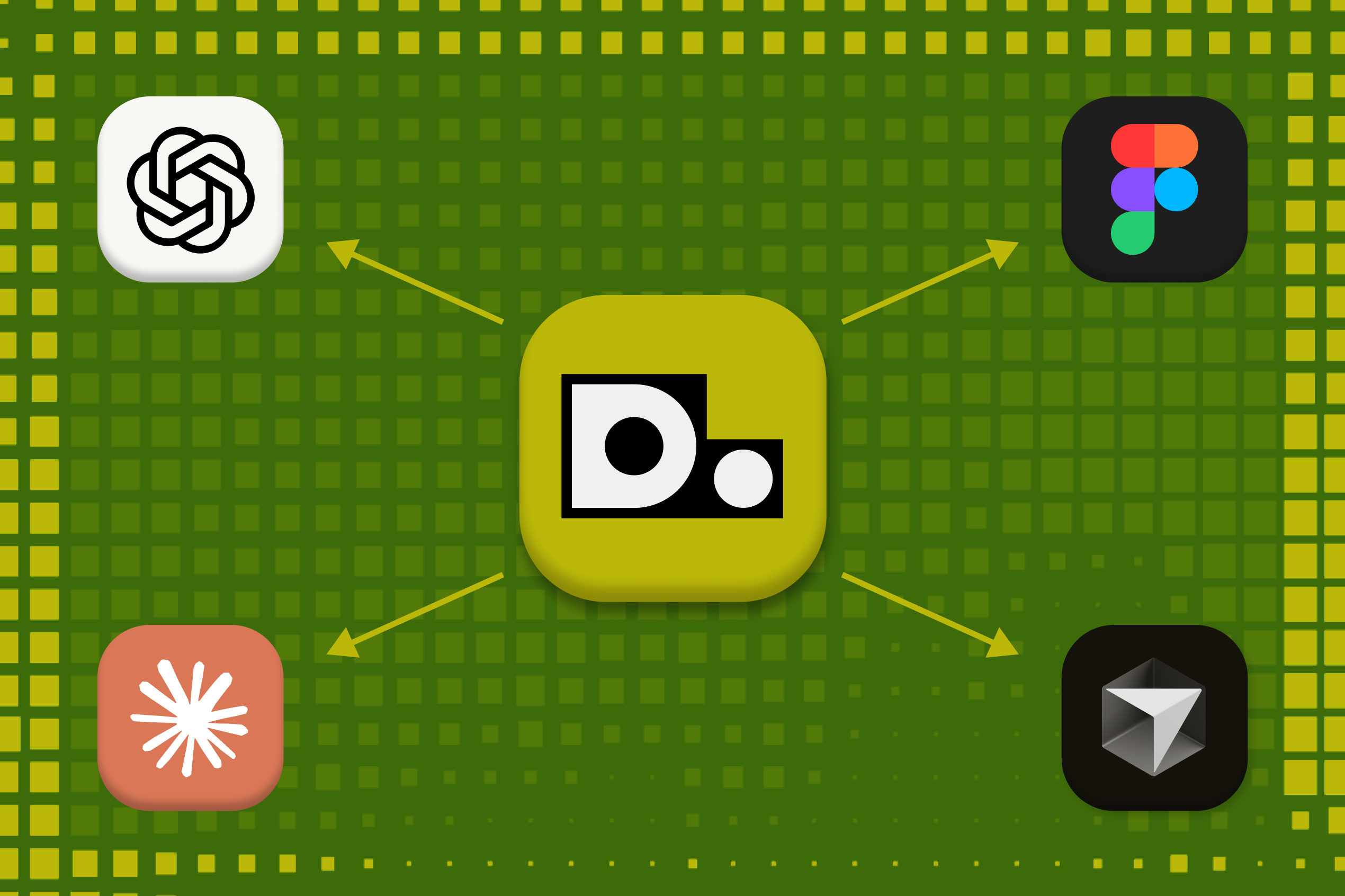
The Ditto MCP (Model Context Protocol) server connects your team's content directly to AI coding tools like Claude Code and Cursor. Think of it as giving Claude a copy of your style guide and your approved text library — so it can reference them automatically, every time it generates or edits UI copy.
Once connected, Claude has access to your copy system:
Your style guide rules. When Claude writes any user-facing text, it checks your Ditto style guide first. That means terminology, tone, formatting rules, and compliance guidelines are applied from the start — not caught in review after the fact.
Want help importing your existing style guide into Ditto? Our team can help!
Your existing text library. Before writing something new, Claude searches your Ditto projects and component library for strings that already exist. If a match is found, it reuses the approved copy instead of generating something new. Less redundancy, more consistency.
The result: AI-generated text that respects your organization's voice, follows your rules, and reuses what your team has already reviewed and approved.
Setup takes a few minutes. You'll need a Ditto API token — you can generate one from your developer integrations settings in Ditto.
In Ditto, go to Settings > Developer Integrations and generate a new API token. Copy it — you'll need it in the next step.
Open your terminal and run:
claude mcp add --transport http ditto <https://api.dittowords.com/v2/mcp> --header "Authorization: token <your-api-token>”
Replace <your-api-token> with the token you just copied.
If you’re using Claude desktop, then after adding the server you’ll want to restart Claude Code. You'll see the Ditto tools available in your tool list — that means it's connected and ready.
Prefer some in depth instructions, or want to hand something over to your engineers? Check out detailed setup info in our developer documentation.
Go to Cursor Settings > Tools & MCP and click + Add new MCP server.
This opens your ~/.cursor/mcp.json file. Add the following, replacing <your-api-token> with your Ditto API token:
{
"mcpServers": {
"ditto": {
"command": "npx",
"args": ["@dittowords/mcp-server"],
"env": {
"DITTO_API_TOKEN": "<your-api-token>"
}
}
}
}
After saving, you'll see a green status indicator next to the Ditto server in your MCP settings. Green means it's live.
The MCP server gives Claude, Cursor, or Figma Make access to your content — but you get the most value by telling it explicitly when and how to use it. The easiest way to do this is by adding a few lines to your project's CLAUDE.md file (for Claude Code) or .cursorrules file (for Cursor).
Here's a simple instruction set you can add:
`When working on UI:
If you want a more in depth example, you can check out the Ditto engineering team’s own demo repo here.
With that in place, your AI tool will check your style guide and search your text library every time it touches copy — without anyone needing to remind it.
You can also use these instructions one-off in a prompt:
Anyone on the team, regardless of role, can generate high-quality product copy without adding to the review bottleneck. The quality guardrails are built into the workflow itself. Your content system travels with the work, always running in the background.
AI-generated text follows your style guide and reuses approved copy automatically. Content reviewers can trust that what enters the system respects the governance rules already in place — and focus their efforts on scaling the system over time.
Every time approved copy gets reused, your library becomes more valuable. Style guide rules get refined and context gets added to it every time it’s applied in an AI prototype. Ditto gets more useful the more your team works with it — not less.