
Check out what's recently been released into your Ditto workspace.
Before we jump into the good stuff, an exciting update: We’ve launched a brand new help center! Check out detailed breakdown of each Ditto feature in our new feature guides, or learn some recommended workflows in our new how-to guides.
Now, let's run through some of the exciting features your workspace has access to, for all beta projects.
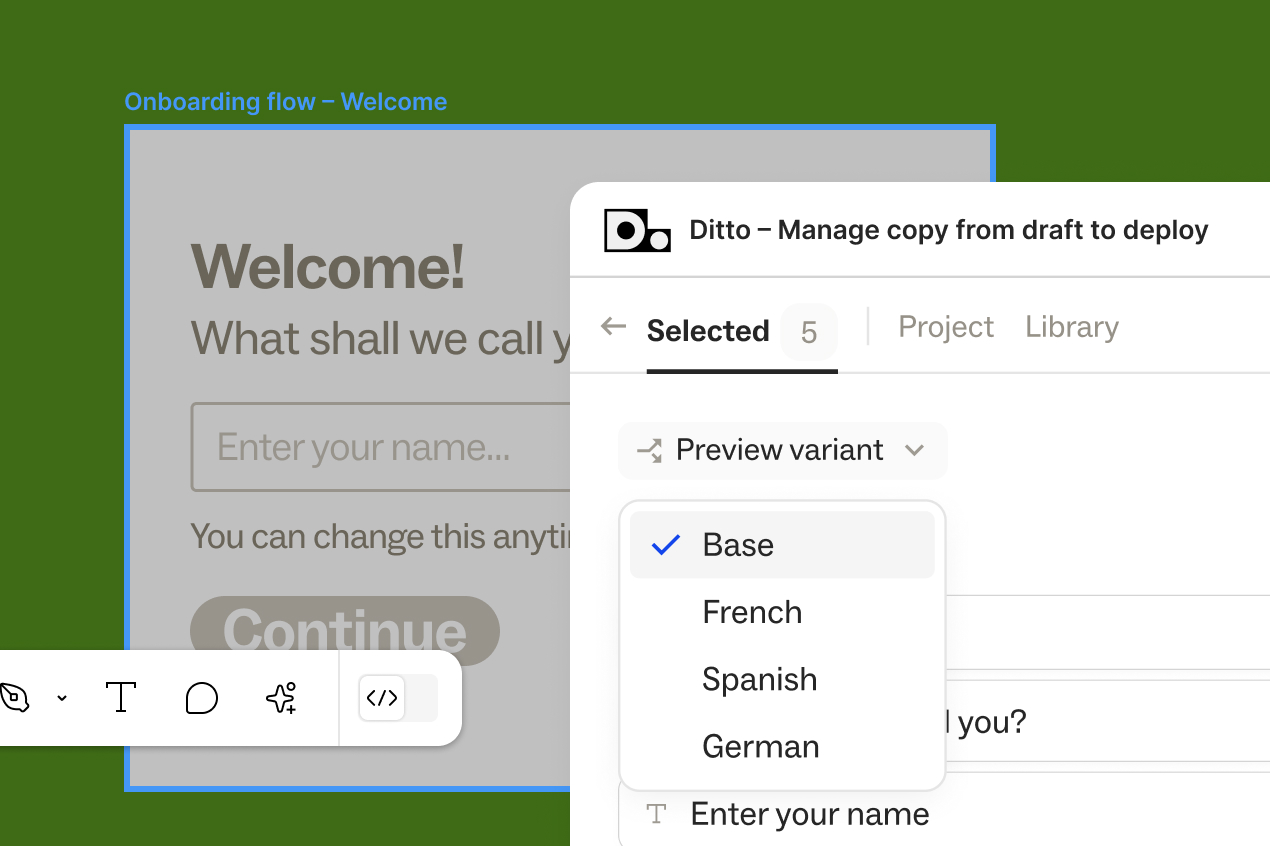
Review a Ditto variant in existing Figma design frames, without manually duplicating or creating new frames, with new Apply Variants functionality!
To change the text in a Figma design frame to contain the text from a Ditto variant, you can apply a variant to a frame in your design file. Applying a variant directly edits the text in your Figma file to display variant text.
How to apply a variant:
Want to roll back the change? Open the menu again and either choose the selected variant to deselect it or click “Reset" to revert back to base text.
_01JZQRSGNN5V7JC6AXMAZBTAJR.gif)
Now, whether you’re publishing or linking components in the web app or the plugin, you’ll see more Ditto suggestions. There are now a few different “fuzzier” suggestions when Ditto recognizes similar copy to an existing component — no longer requiring an exact text match to suggest as an option.
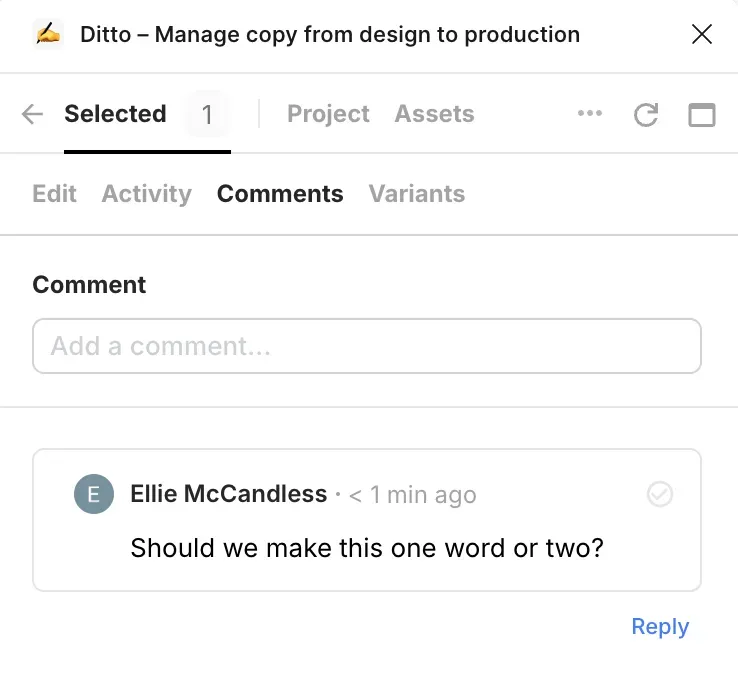
Don’t worry about going back to the edit panel to leave a new comment — if you’re reading through the conversation on a text item or component, you can now add a comment straight from that same tab.
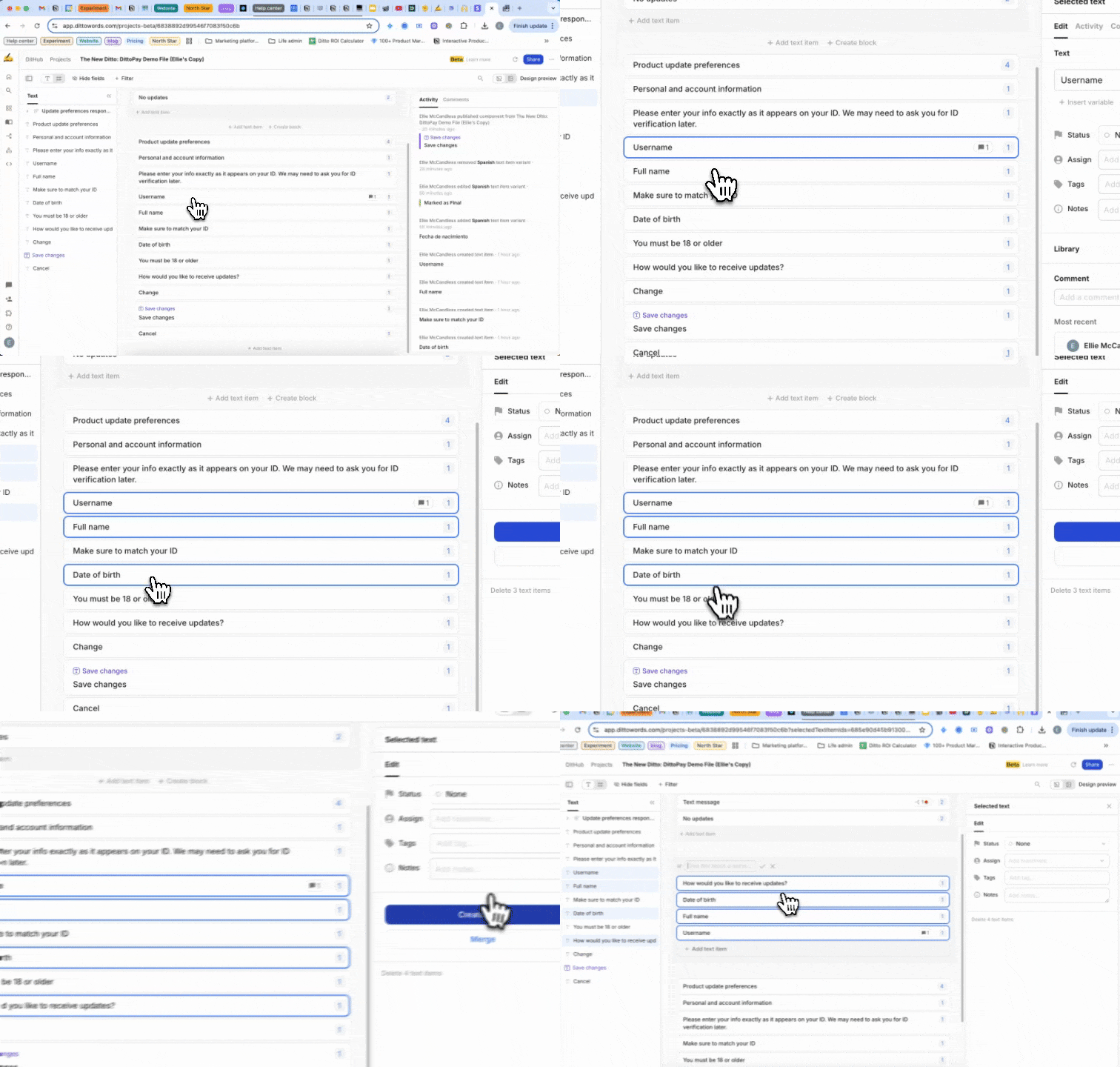
When organizing your text items in the web app, just CMD+Click (or CTRL+Click) to select multiple text items and add those to a new block.
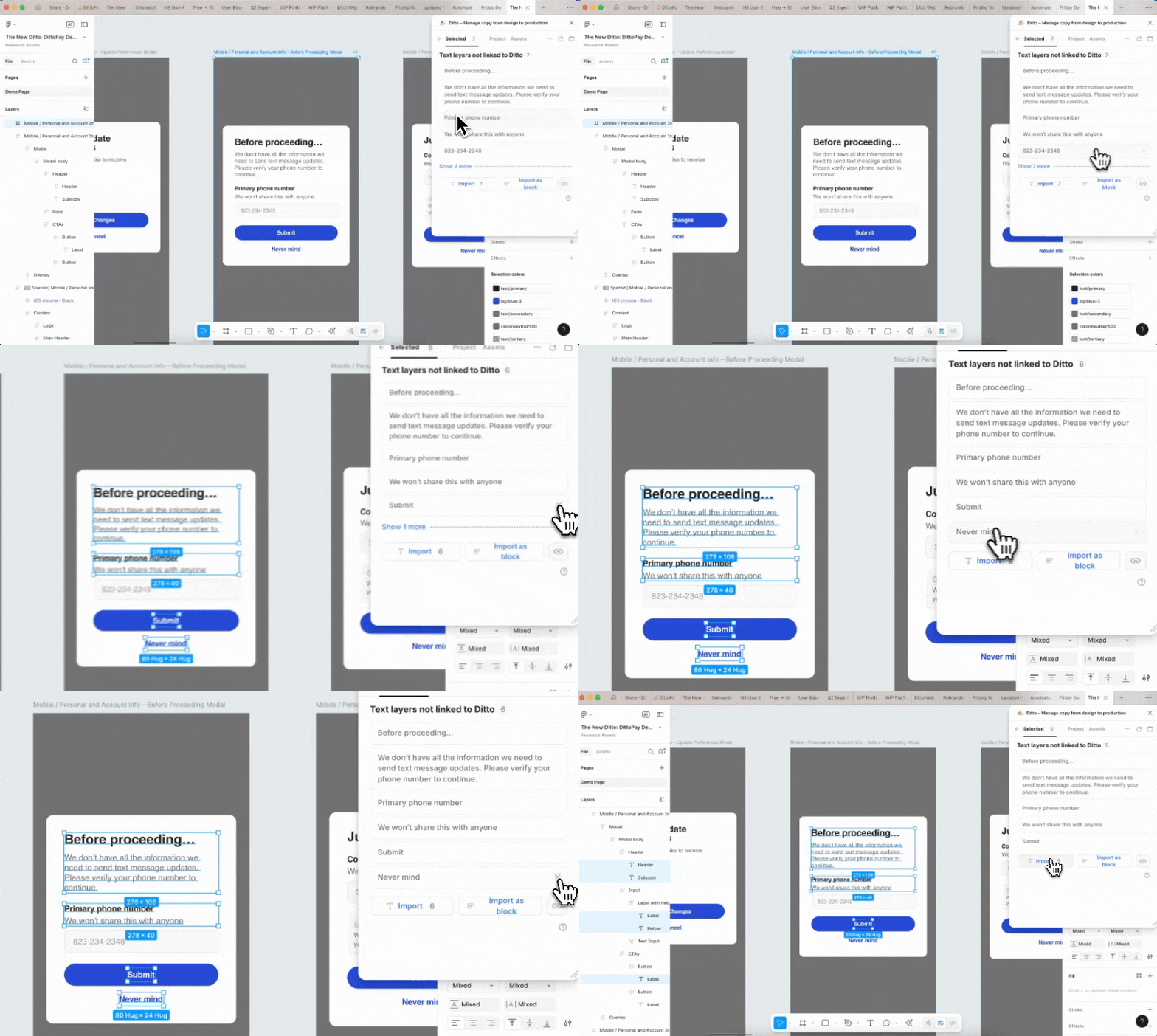
When you select a Figma frame with multiple text items, but you don’t want all those text items in Ditto, now you can de-select the ones you don’t want to import.