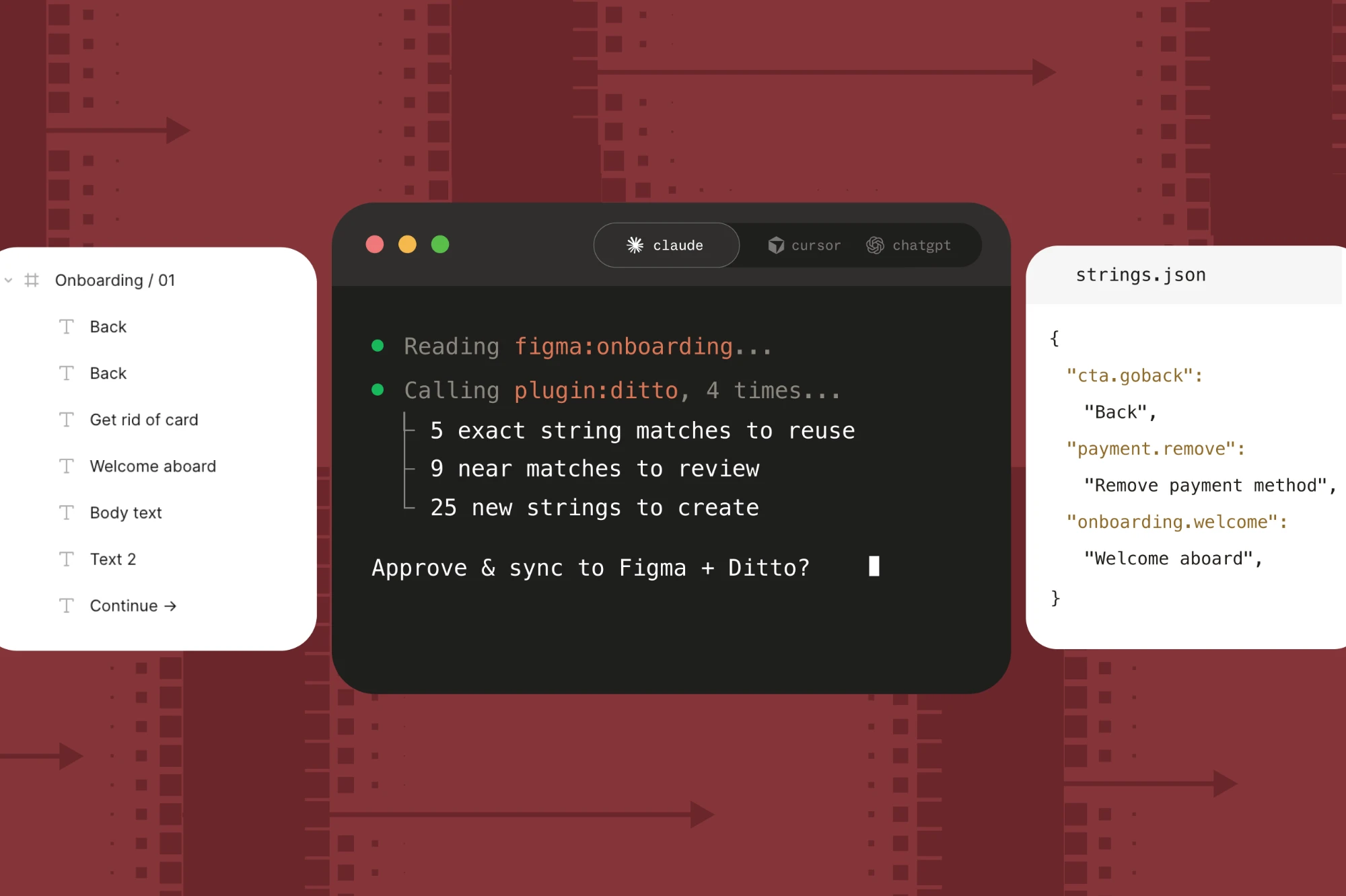


Ditto's new automated workspace setup: one prompt, a system built and ready to use
Ditto's onboarding automates setup, with a single agent setup prompt. Build a content system and connect it to your AI tools, in minutes.
Product teams have brought systems to the other core building blocks of product development. Your UI components live in a design system. Your code lives in a repo with structure and history behind every line. Product copy hasn't gotten the same treatment — it's the last layer still held together by habit, memory, and whoever wrote the last version of a string.
Setting up a new Ditto workspace now fixes that, in one step.
Why you need a content system
Most teams manage copy the same scattered way: a style guide in a doc somewhere, approved strings in a spreadsheet, a few rules some people remember and nobody else does. It works, sort of, until AI-assisted workflows start touching and generating copy faster than a person can track by hand.
Markdown files, a custom skill, a one-off agent instruction — these are a good start. But a real content system gives you connection, traceability, and control no matter what team, or what tool, is doing the writing.
One prompt, two jobs
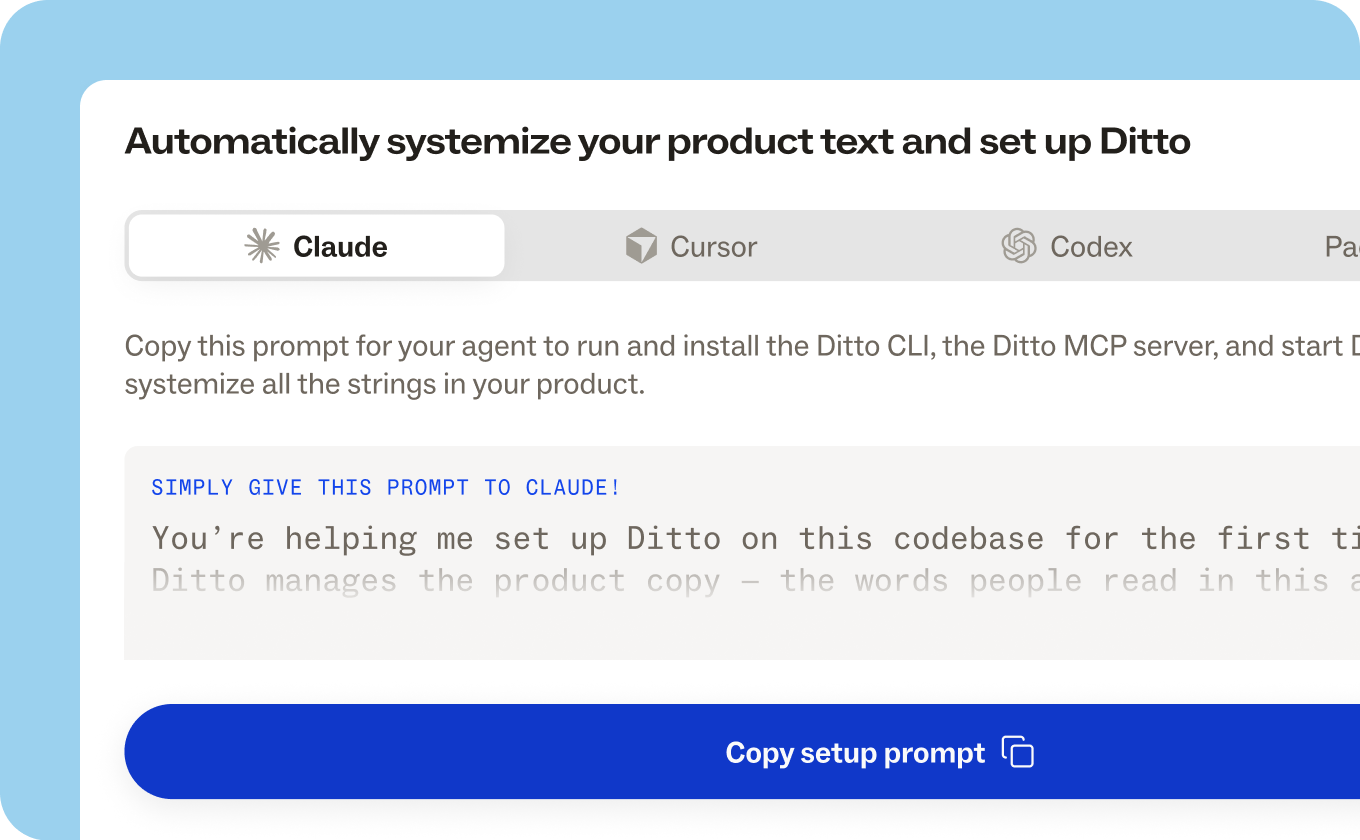
Setting up a system used to mean two separate efforts: building it, then separately wiring it into the tools your team actually writes in. Ditto's new workspace setup collapses that into one prompt, run once when you create a new workspace. It does two distinct jobs:
Job 1 — it builds your system. Ditto Scan combs through your live codebase and turns what's already there into a working content system: strings that repeat become a component library, translations you've already shipped become variants, and the voice, tone, and terminology in your production copy becomes a first draft of your style guide.
Job 2 — it puts that system to work in your AI tools. The same prompt installs the Ditto CLI, connects your agent to the Ditto MCP, and installs the Ditto Agent Package — the built-in review and audit skills that check your system automatically. This means AI agents will use the system you’ve built in Ditto reliably, every time.
Setting up a new workspace
Here’s what you can do in your first session in Ditto, all from a single prompt:
- Copy the setup prompt based on the agent you use: Claude, Cursor, or Codex.
- Both jobs are set up in one pass — Job 1 (system setup) and Job 2 (agentic connection) happen together, no separate setup steps.
- Review the strings that Ditto Scan found and add quick product context.
- Reshape anything that's off with plain-language feedback, and finish.
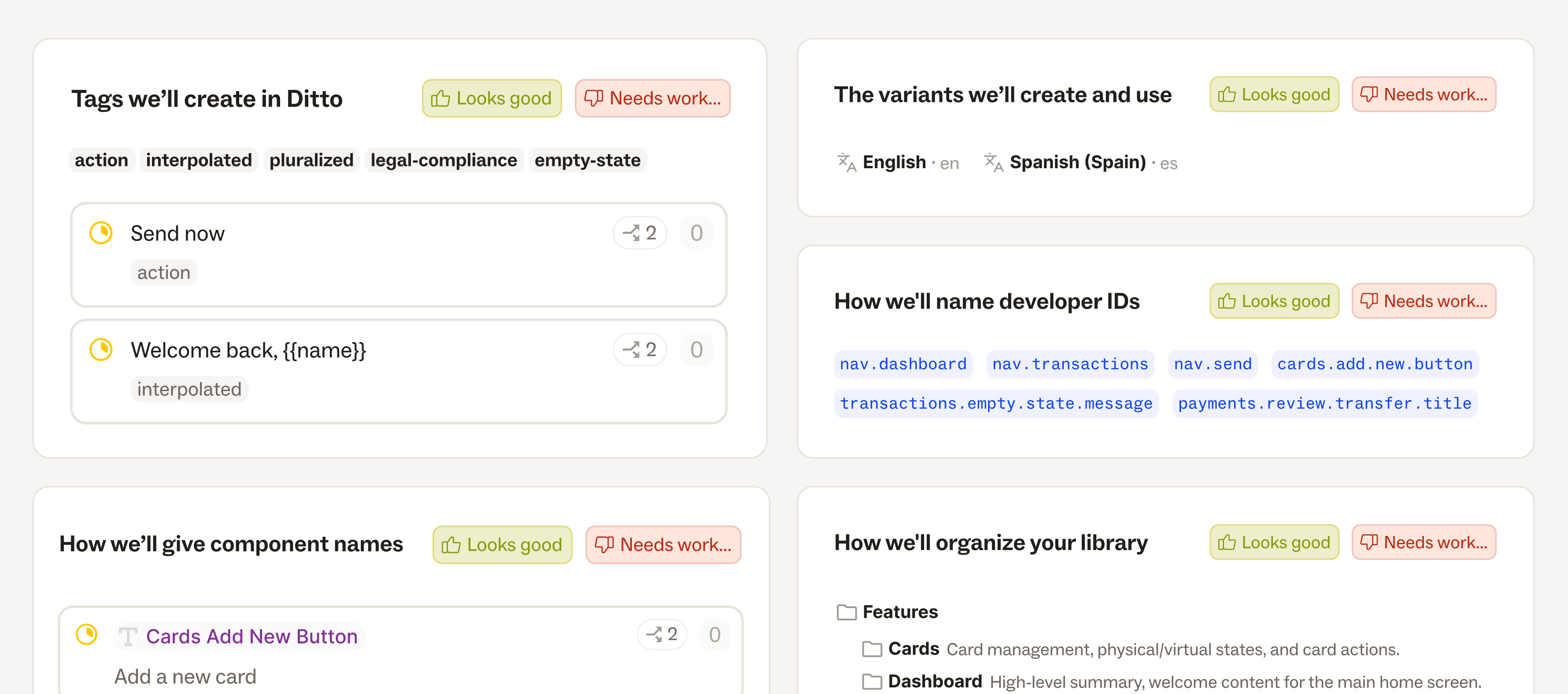
Watch a video of Ditto Scan building a first version content system live.
And while the system itself is taking shape, the same prompt is hooking it up to your agent tools:
- Automatically connects the Ditto MCP so that future product text written by an agent automatically follow style guide rules, reuse text wherever possible, and reference past copy decisions
- Sets up the Ditto Agent package, which equips your workspace with pre-configured skills to review and audit copy consistently, every time
- Enables Ditto Specs, which allow you to embed copy guidance right alongside your design system components within your codebase
What you land in
A Ditto workspace where the system is both built and already in use:
- A component library — your strings organized, tagged, and carrying developer IDs
- A style guide — drafted from how your product actually talks, not a generic template
- Translations already brought in as Variants
- An agent that already checks all of it — review and audit skills running by default
Get started
One prompt, one new workspace, and both jobs are already done. Run Ditto's new onboarding in your own Ditto workspace →