Setting up a new Ditto project manually means combing through your Figma file, selecting each text layer, and using the Ditto plugin to add to your project. If you’re working through a few screens or flows, that's simple enough. But at the scale and speed some teams work at, it becomes a bottleneck for the important copy work.
Now, you can automate the project setup in minutes with the Ditto + Figma MCP. Point an agent at your Figma file and your Ditto project, and it scans every text layer, creates the ones that don't exist yet, and matches the rest against your component library. Items come in already linked to the right component, with its status, assignee, and variants attached. You end up with a project that's organized and connected from the start.
What you’ll need
- Open the Figma file you want to connect, and launch the Ditto plugin from the Figma toolbar.
- Paste the Figma file URL into the plugin and start a new project. This creates an empty Ditto project linked to that file.
- Copy the new (blank) Ditto project URL and the Figma page URL.
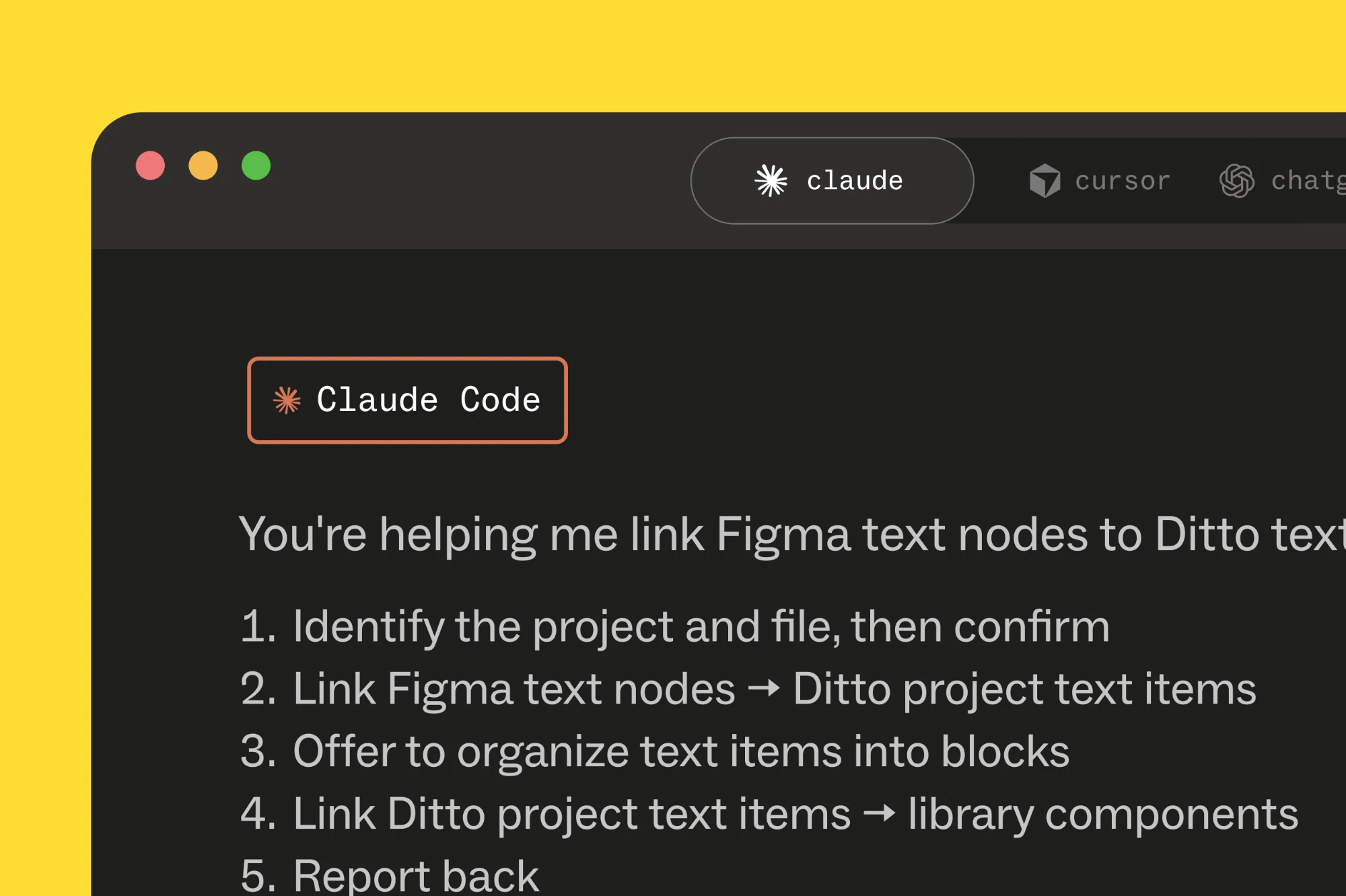
- Open your agent (Claude Code, Cursor, etc.) and paste in the setup prompt (found in the setup guide), along with both URLs.
Find the exact setup prompt, prerequisites, and full step-by-step in the Ditto Help Center guide.
What the agent does for you
Once you kick off the setup prompt, the agent works through your Figma file in a fixed order:
- It scans the Figma file for every text layer.
- It checks those layers against what's already in your Ditto project. If you're starting from a blank project, nothing matches yet (that's expected).
- It creates new text items in Ditto for anything that doesn't match.
- It checks the text items against your component library, the reusable text items in your workspace, like error messages, CTAs, or buttons. When it finds a match, it links the item instead of leaving it standalone.
Depending on the size of the file, this takes a few minutes. The agent pauses for confirmation at points along the way, so you can catch things as it works.
What lands in your project
Back in your Ditto project, once it's done:
- Every text layer from your Figma file exists as a text item
- Items are grouped into blocks of related copy
- Text items that match existing library components carry that component's status, assignee, developer ID, and variants
This gives you a Ditto project ready to work from. You can keep working alongside your agent, building out translations, setting statuses and assigning owners, checking against style guide rules. Read more about what’s possible with the Ditto MCP here.
With Ditto and Figma MCP together, your agent handles the setup mechanics so you can spend that time on the strategic work.