


Ditto | What's New
What’s New
Edit style guides via Ditto MCP
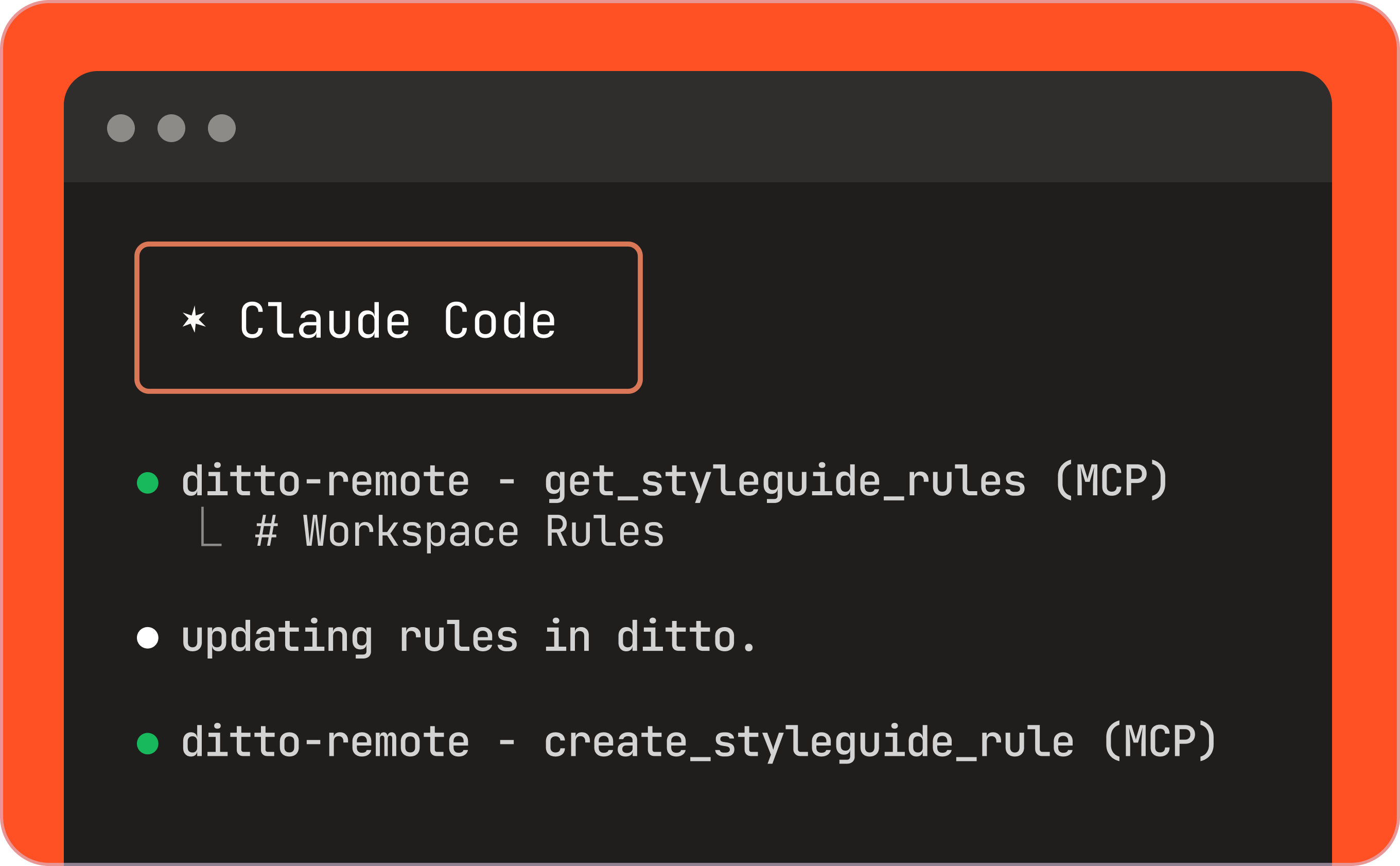
Make edits to your Ditto style guide, directly from your agentic tool, with Ditto’s two-way MCP. As you’re working in your AI workflow, just tell the agent to update or make an edit to your style guide, and it’ll automatically push the change.
Auto-suggested tags for style guide rules
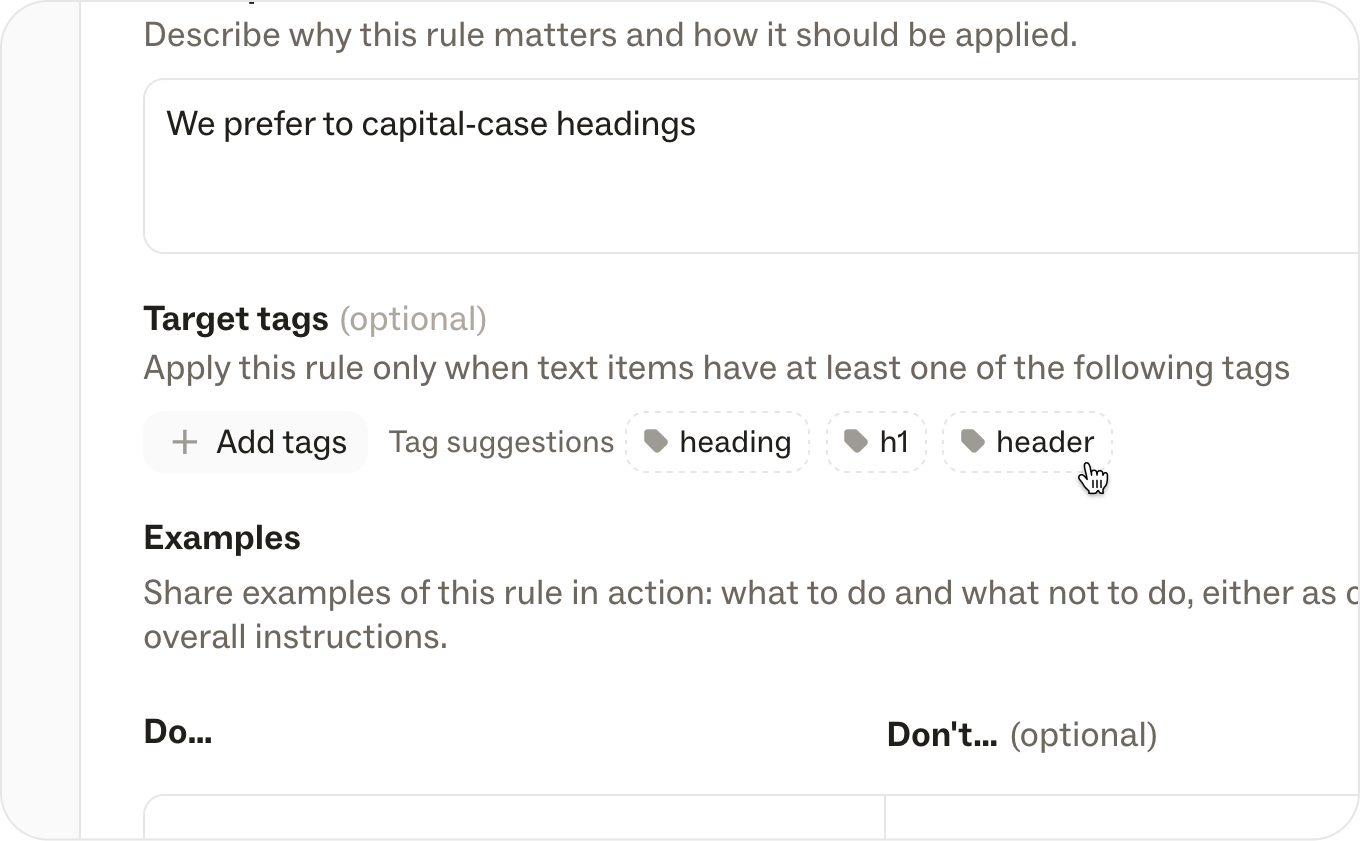
Get recommendations for new tags to add to style guide rules, based on rule context. For example, if you have a style guide rule about capitalization in section headers, Ditto will recommend adding header tags to that rule. This means that agents and AI tools will better apply style guide rules when generating content, with richer metadata to reference.
Ditto MCP

Ditto's MCP (Model Context Protocol) server connects AI coding agents to your team’s content in Ditto. It gives agents access to your style guide rules and existing text so they can write on-brand copy and reuse existing strings when generating code.With the MCP server, your AI coding agent can:
- Follow your style guide rules when writing UI text, so generated copy is consistent with your team’s guidelines.
- Search and reuse existing text from Ditto projects and the component library, so agents reference approved text instead of generating new ones.
Get full setup instructions in Ditto's developer documentation.
Toggle text items as integrated into development
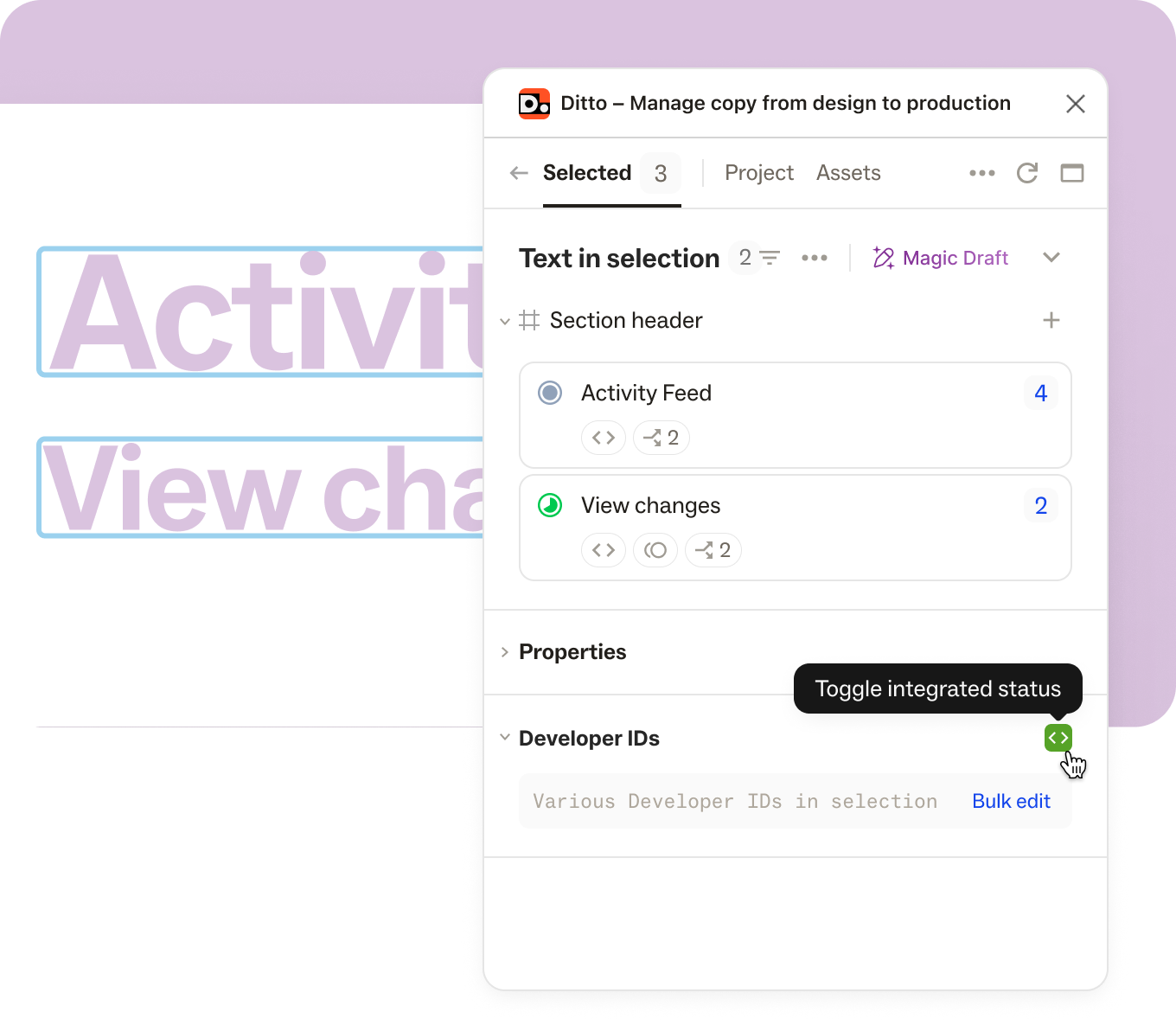
A new toggle in your Ditto text items toggles on an "Integrated" filter, to denote all the text items you have integrated into development. By toggling this on, you'll see warning notifications if you try to edit the Dev ID after the fact, and you can also filter all text items down to just the ones integrated into development.
Style guide improvements
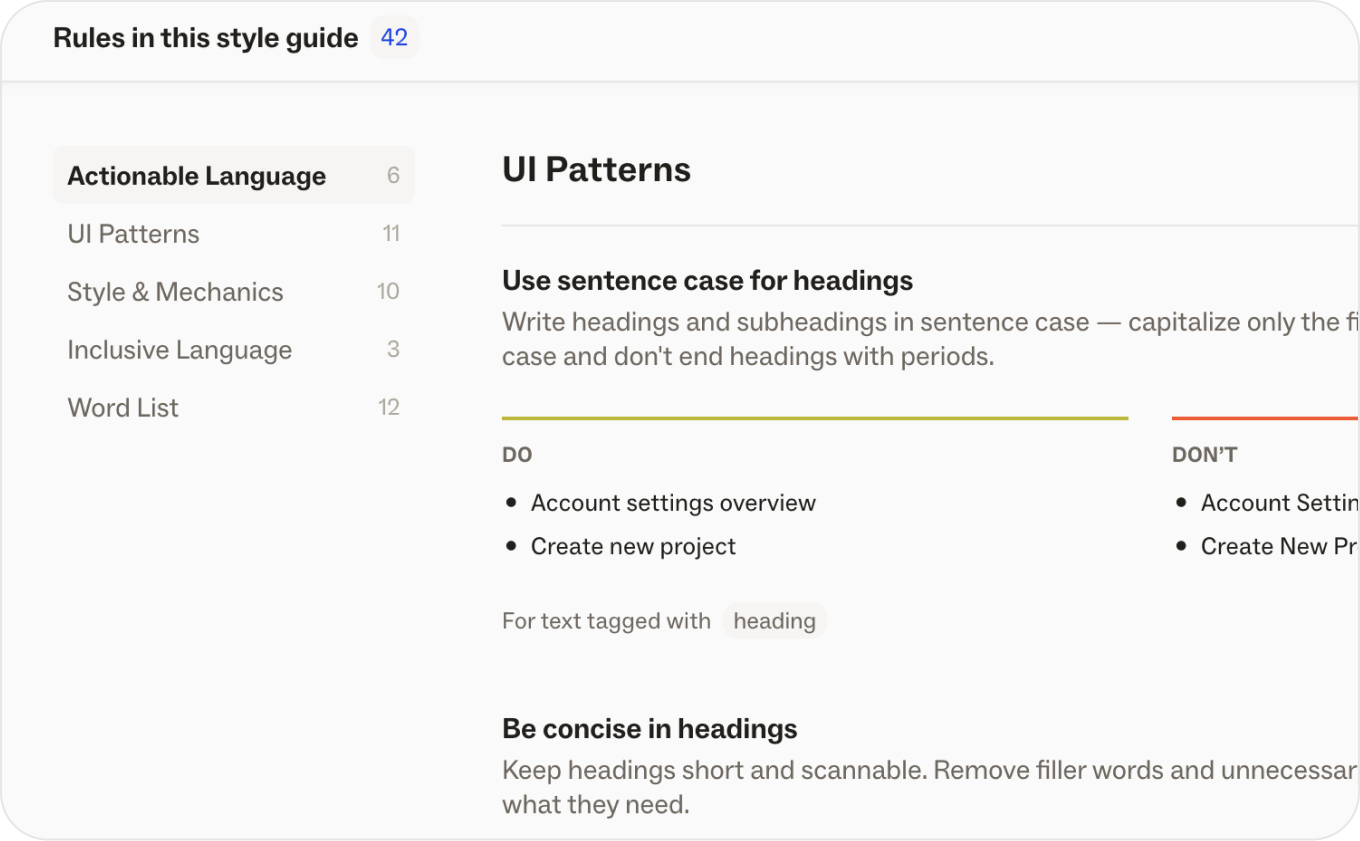
Ditto's Style Guides have gotten easier to create, review, and manage. New Style Guide UI makes it easier to build out rules, now with all examples easy to scan from one view.
New customizable sections makes it easy for your Ditto Style Guide to match the content stucture in any former style guides.
The new structure offers better support for word lists and terminology, that can scale alongside you.
Edit and delete comments
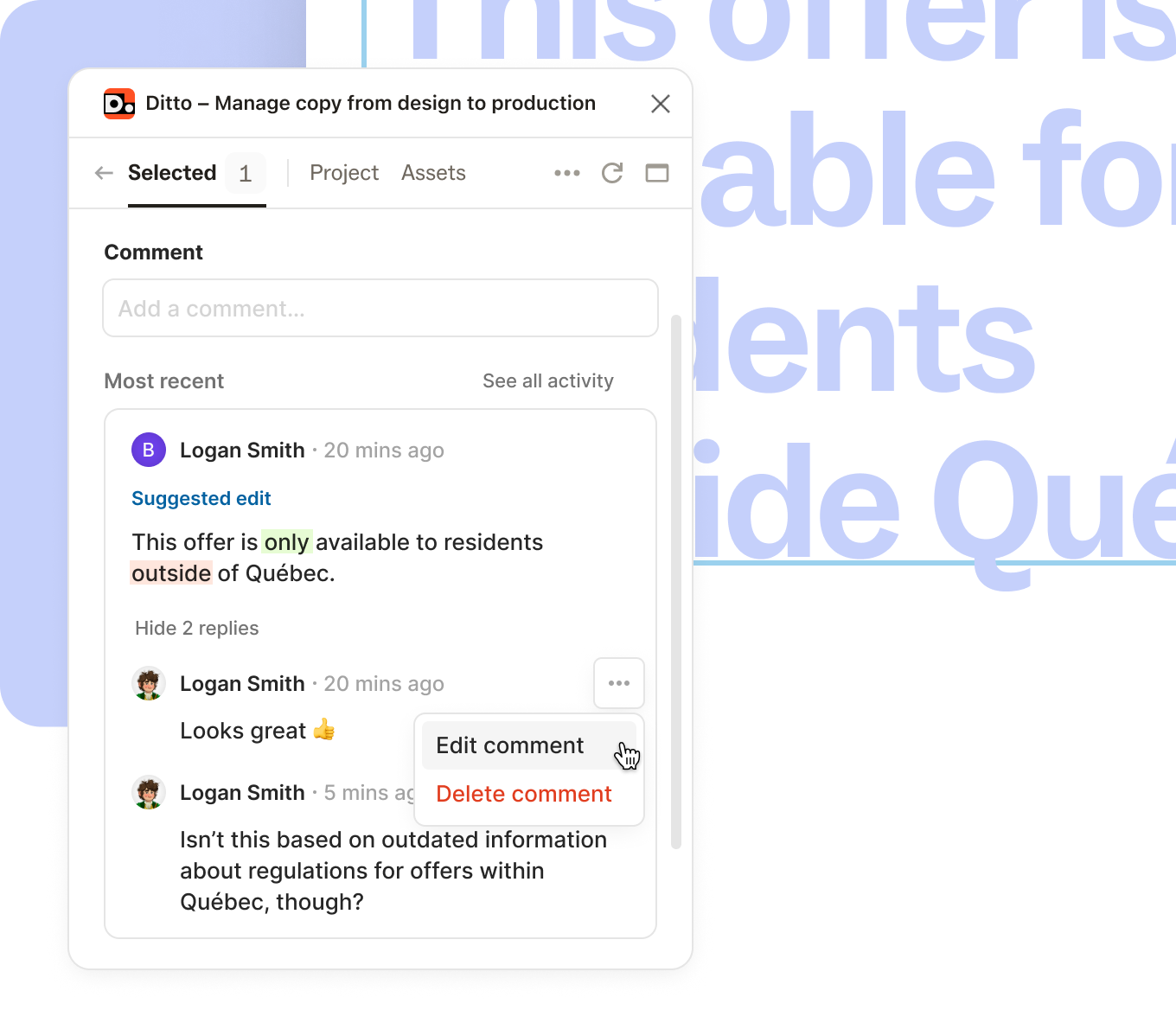
You now have the ability to edit or delete a comment in a Ditto conversation!
Universal variant view
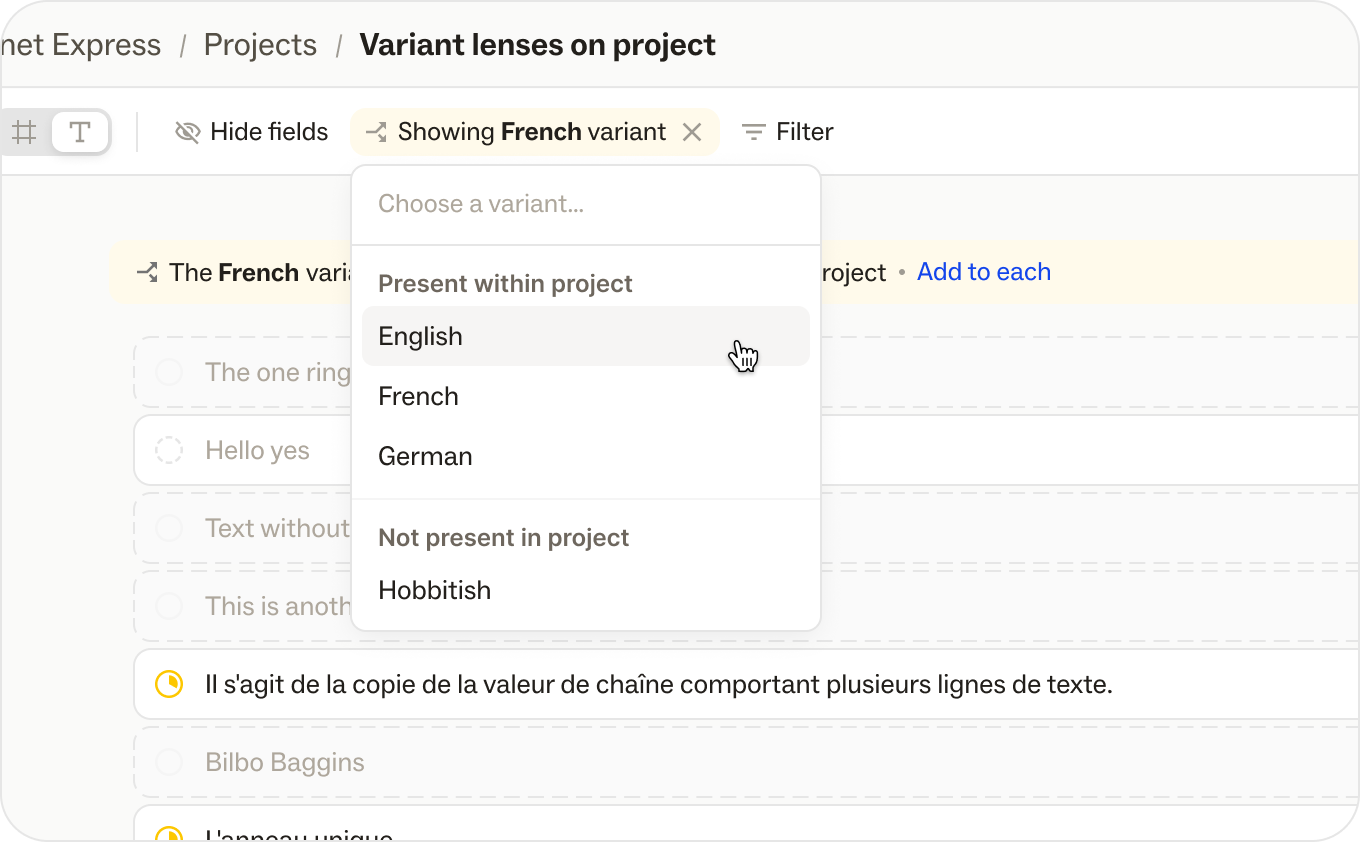
You can now choose a variant from the filter bar in the Ditto Web App to display, edit and bulk add variants. You can select a variant from the dropdown list in a single Ditto Project or in your Ditto Library, from either Text or Frame View. Once selected, all the metadata will switch to that Variant's metadata.
If not all items in that view (project, frame, library folder) have the active variant, you will see a banner with a button to add the variant to every item in the view. This will add the Variant with default empty text, so your team can work through each text item that still needs a Variant.
Magic Draft: Context-aware AI writing assistant
.png)
We’ve introduced Magic Draft, your AI writing assistant built to help you draft, refine, and reuse product copy right inside your design files. By leveraging your existing Ditto library and design context, it generates context-aware copy suggestions for everyone on your team.
Generate initial copy drafts and make quick edits using an LLM that pulls from your project’s metadata, style guides, and surrounding design elements.
How it works:
- Select your text: Select a single text layer or multiple layers within Figma.
- Open Magic Draft: Click the "Magic Draft" button located below the text field in the Ditto plugin.
- Prompt and refine: Enter a prompt to generate a draft. You can view alternatives, provide a follow-up prompt to refine the result, or use quick actions to instantly simplify language or shorten text.
- Review suggestions: Magic Draft automatically pulls context from a specific hierarchy to ensure accuracy:
- Your specific prompt and the selected text layer
- Ditto metadata (tags, notes, and status)
- Surrounding text within the same Figma frame and screen
- All existing text across your Ditto projects and library
- The style guide rules and examples you’ve built in your workspace
Key features and considerations:
- To maintain consistency, Magic Draft will recommend reusing an existing library component or matching project text if your draft closely aligns with something already in your system.
- Ditto’s Activity log will capture any copy created or refined by Magic Draft, maintaining the same level of accountability as manual edits.
Magic Draft is currently available to all users with a Ditto account, within the Ditto Figma plugin. Drafting from the web app is not supported at this time.
Read the full details on Ditto's Help Center.
Custom statuses
.png)
Make Ditto work with your own team’s processes with new custom statuses. Capture specific stages—like "Legal Review," "Blocked," or "Ready for Translation"—to manage the work your way.
- Create and customize: Admins can head to workspace settings to add new statuses, choose custom colors, and select specific icons.
- Pick your order: Reorder your custom statuses alongside the default set to match your team's exact workflow, and hide the Ditto default stages if they don't fit your process.
- See status in Figma: Custom statuses will appear as text labels in Figma layer names (e.g., “[Legal Review] Button Label”), so designers and developers can stay informed without leaving the file.
A few things to note:
- To maintain a consistent workflow for the whole team, only Admins can create or edit custom statuses.
- The "Draft" status will still be the default status for all text items and cannot be hidden or reordered.
- To prevent data loss, you cannot hide or delete a status currently assigned to text items. If you need to phase one out, move those items to a new status first.
Custom statuses are available for teams on our Enterprise plan. If you’re on a different plan, upgrade in your settings or reach out to our team to get access.
Plural forms
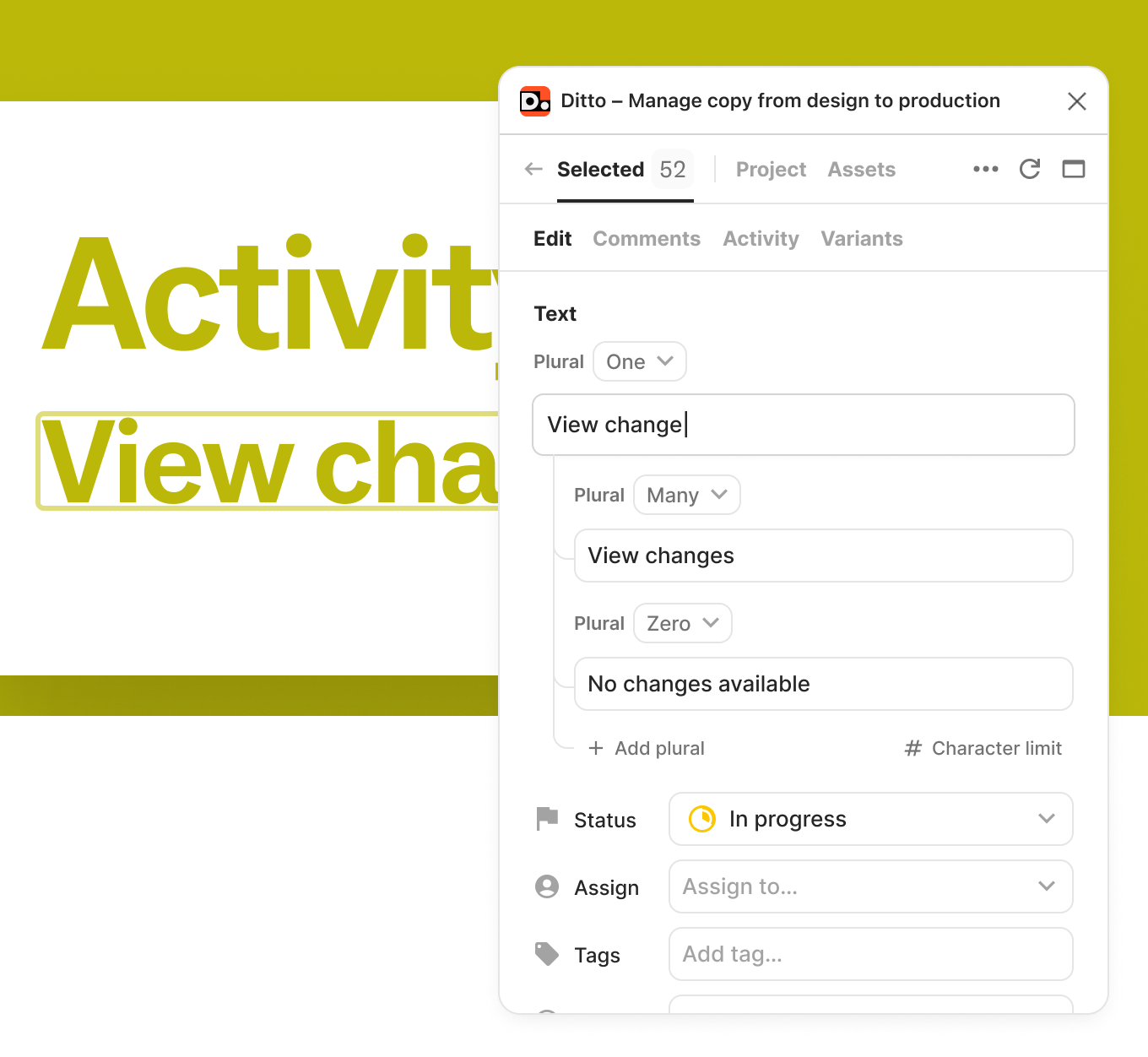
Add, edit, and manage plural forms for your Ditto text items, to make your copy adaptable to different quantities (without creating disconnected text layers). Instead of managing multiple Figma text nodes for copy like "1 item" vs. "3 items," you can now define these variations within a single text item, right in Ditto.
How to use plurals:
- Select a text item: Navigate to a text item, variant, or library component in the Ditto web app or plugin.
- Enable plurals: Select the new "Plurals" option within the text details to define your pluralization context.
- Add your variations: Enter the specific copy for different counts.
- Sync with development: Use existing developer integrations or Ditto API to pull these plural forms into your codebase using a single devID.
Plurals follow standard i18n plural forms (like one, other, few, many).
Keep your design files clean while capturing all copy variations. Your developers will thank you!
Updated statuses and icons
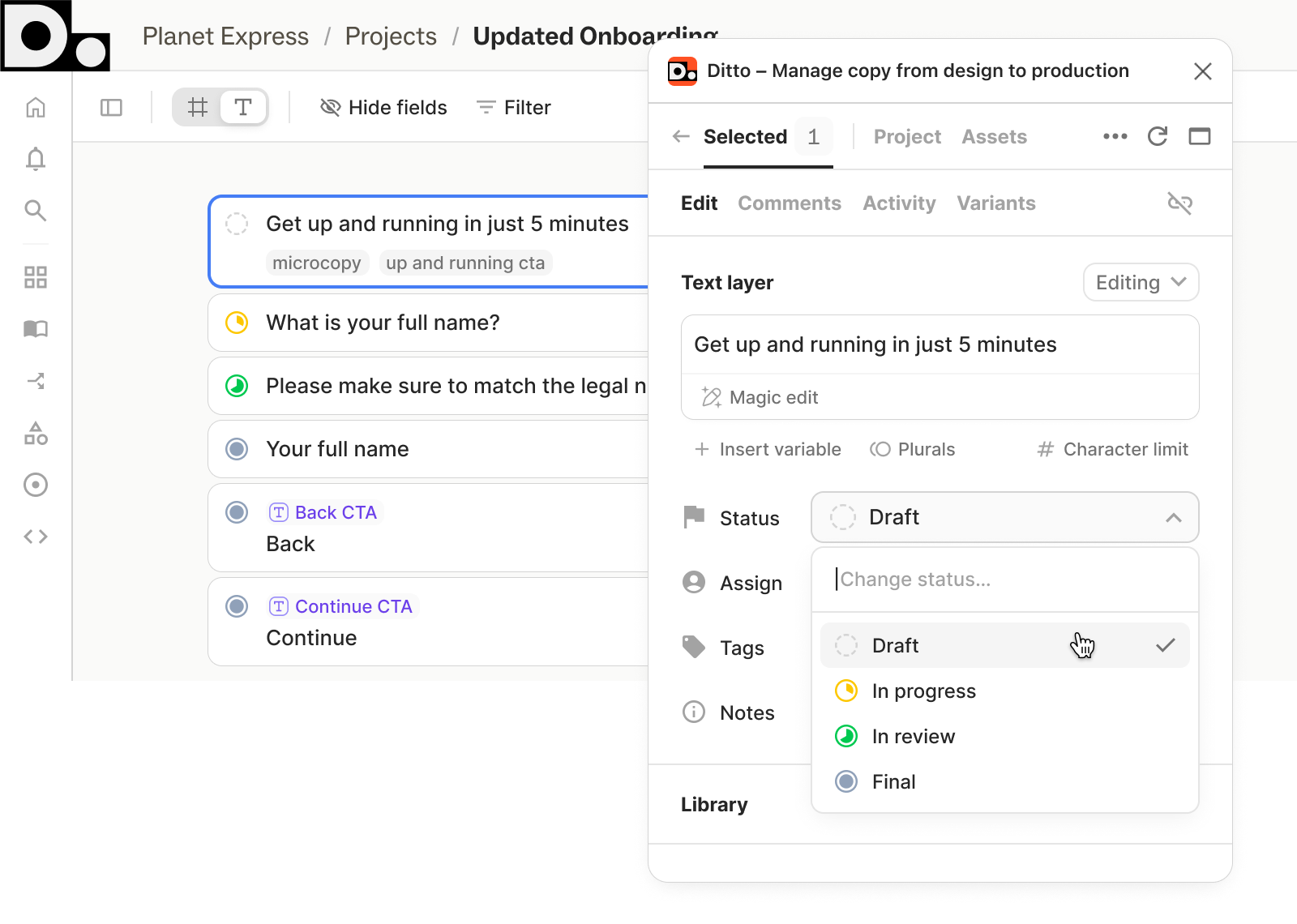
We’ve made some updates to Ditto statuses to make managing the lifecycle of your copy more intuitive. Status labels, icons, and colors are updated to reflect your workflow better and improve visibility across the web app and activity panel.
-
New progress icons: We’ve replaced the thin colored lines that used to indicate status, now each text item will have distinct icons located directly on the card.
-
Simplified status labels: We’ve updated our labels to distinguish clearly between work-in-progress copy and unlinked text layers:
- Draft (formerly "No status")
- In Progress (formerly "Work in progress")
- In Review (formerly "Ready for Review")
- Final (no change)
-
Action-oriented colors: We’ve moved away from the traditional stoplight colors. The new palette is designed to draw your eye to copy that needs immediate attention, such as items In Progress or In Review.
-
Activity panel updates: New labels and icons will now show up in your project’s activity history, making it easier to scan for recent changes.
These UI and label changes don’t affect the statuses used in our API (FINAL, WIP, REVIEW, NONE), so your existing developer integrations will continue to work without interruption.
Learn more about using statuses to manage your team's workflow on our Status Help Center page.
Edit variants in the Figma plugin
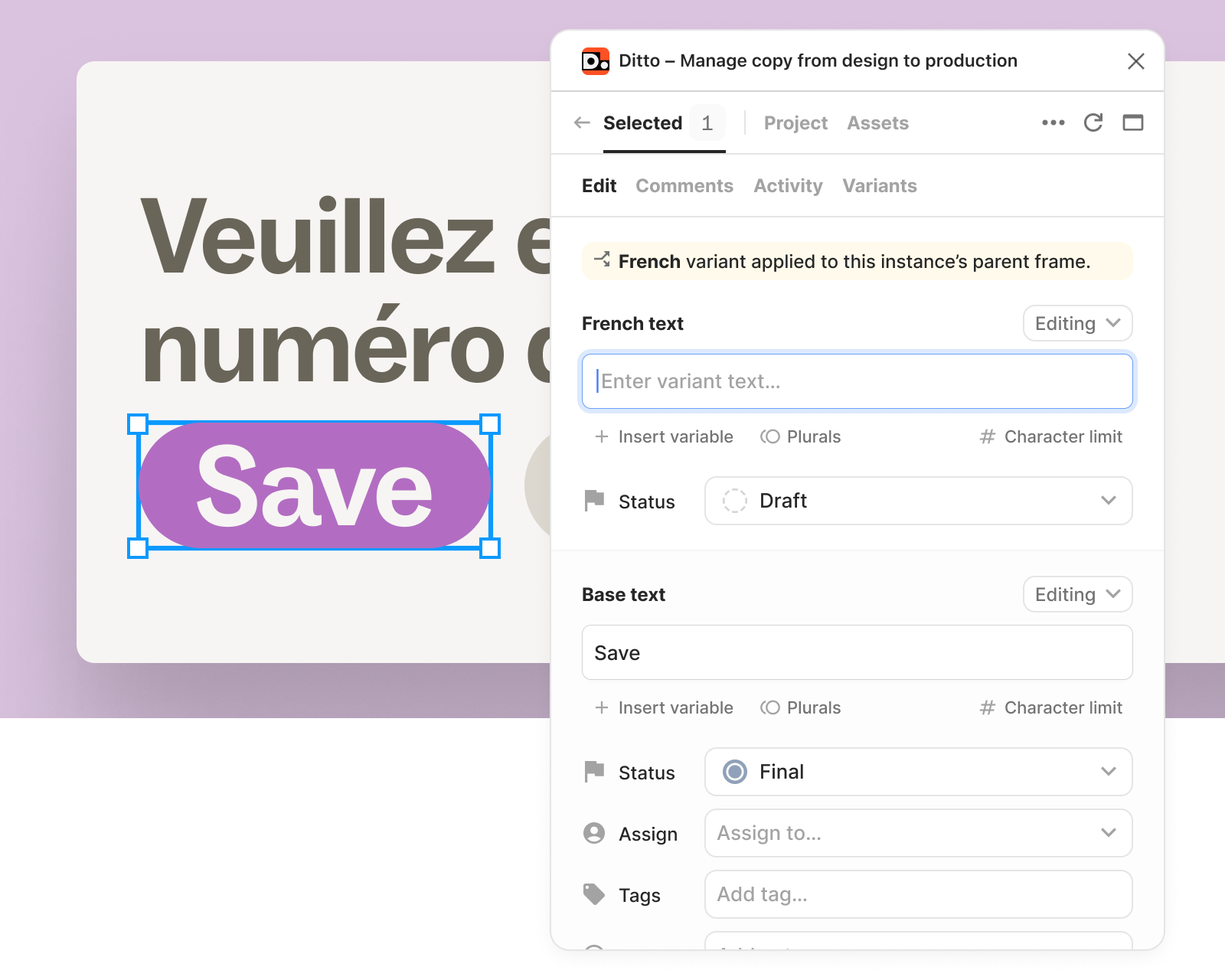
Managing translations just got even easier. Now you can edit and suggest changes to your existing text variants directly in the plugin’s “Edit” tab.
- When you apply variant text to a frame in Figma, we’ll show the variant text above the base text in the Ditto plugin.
- Edit variant copy from the plugin, or toggle to “Suggesting” to recommend edits for your team, then save. Your team will see suggested edits in the “Comments" tab, and accept or reject the change from there.
- When you set a status for the variant text in the “Edit” tab, it’ll automatically update under the “Variants” tab, so you can see in both places when a variant needs more work.
Now, you can work on base text and variants side-by-side, from the Ditto plugin, right inside your design files. Iterate, make quick edits, and review translations in design context, all from Ditto.
Onboarding tools
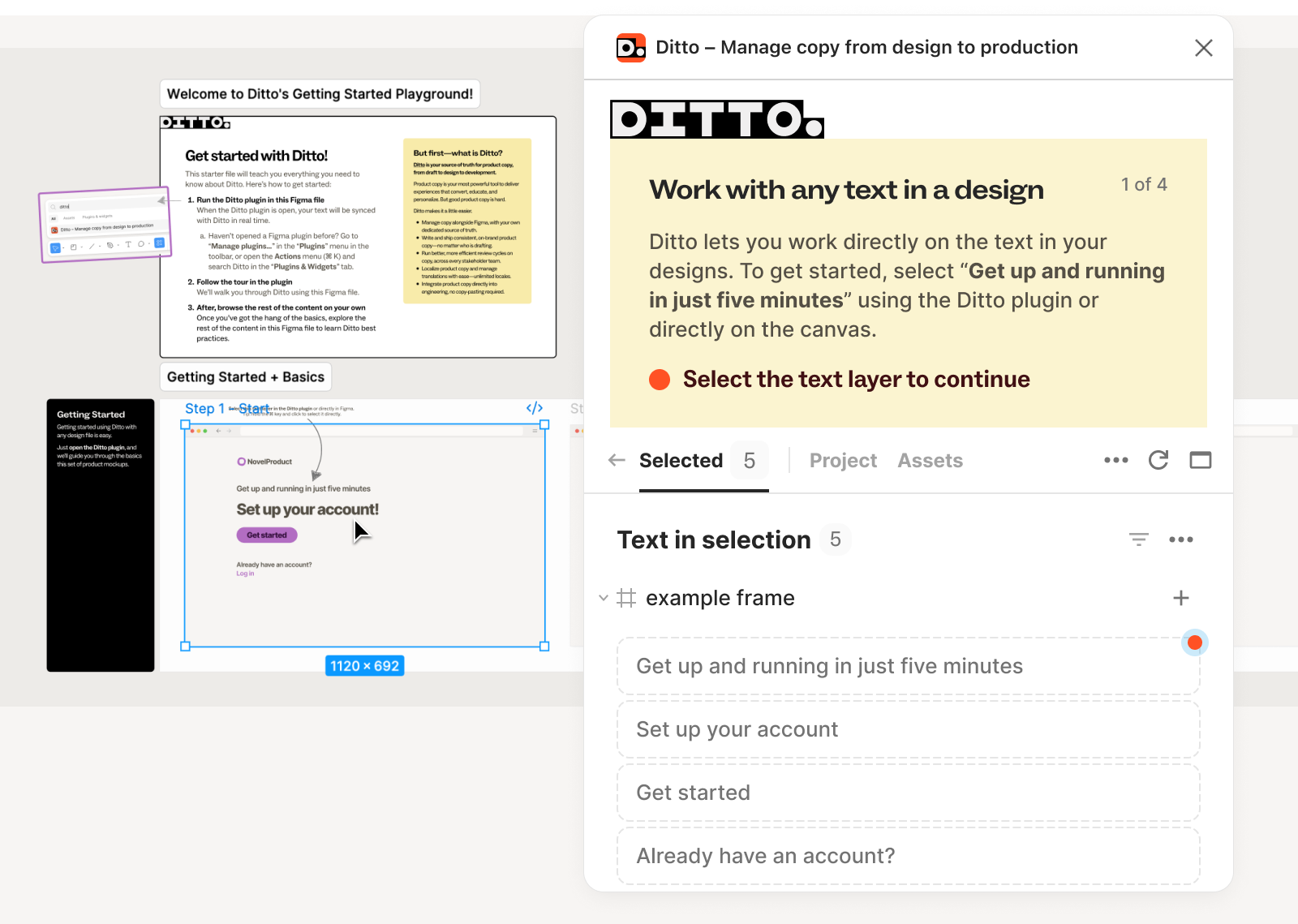
We have rebuilt your first project experience in Ditto with simplified workspace setup, a new Figma starter file, and an interactive tour to walk through fundamental features you need to know in Ditto.
- Simplified workspace setup: Answer fewer questions during signup and get to the product faster. Let us know what you’d like to use Ditto for, which helps tailor your experience.
- Try Ditto with the Getting Started Playground: Instead of connecting your own Figma file right away, you'll get a quick tour and test the features using Ditto's new starter file.
- Follow the plugin tour: The plugin guides you through adding frames to your Ditto project, selecting text, setting text status, accepting style guide suggestions, and linking text matches.
- Continue in the web app: After the plugin tour, you'll be directed to the web app where you’ll learn how to work with design previews, make edits, and sync changes back to Figma.
Once you master the basics, explore the rest of the Getting Started Playground to learn Ditto features that will help you accomplish your goals: Scale consistency with AI style guides, run efficient reviews, or manage translations.
You can still try Ditto using your own file, but we recommend using the starter file to master the basics (in under 5 minutes!).
Edit text within design context
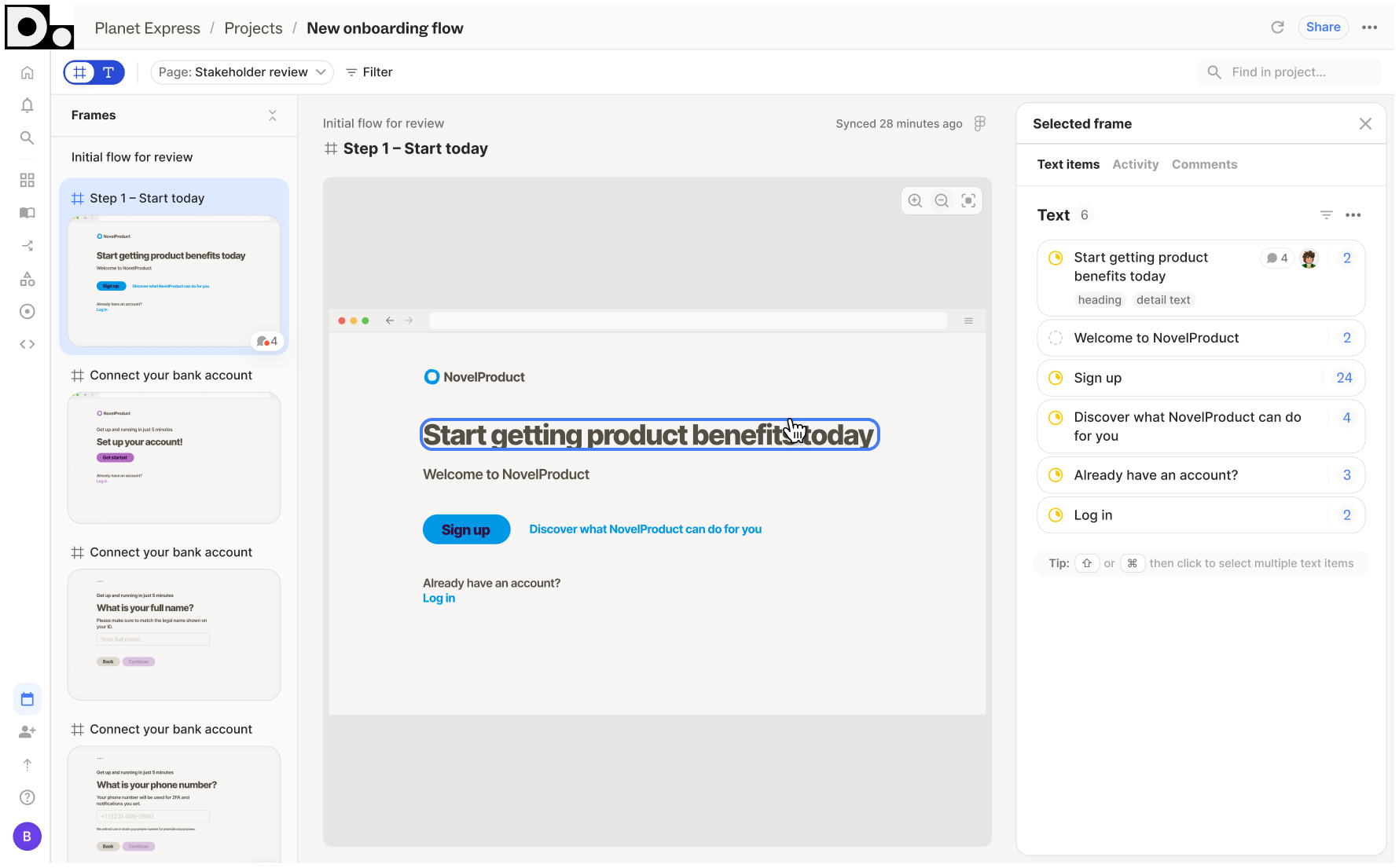
Ditto's web app now has all the design context you need. Whether you’re actively editing text or doing a review pass, you can run your full workflow from the new design view.
A single, unified view for working with designs: We’ve made the design view more powerful, and the default view for projects connected to a design.
- You can now zoom in/out and pan on all designs. Just like navigating a Figma canvas, you can now move through design frames in Ditto's web app.
- In design view, the details panel filters comments and activity to the current frame. Text items linked within the selected frame will also display here, as opposed to separately on the left.
- See all of the frames in your project in a grid. Scroll through all of your frames by page and section, and click in to a single frame to edit text.
- We’ll preserve your selection when switching between design and text views. If you want to work from designs, use design view. If you want to see all of the text across your project, use text view.
Select and work on any text directly from the design view — even if it’s not yet linked to Ditto. This means teams can now use the design view as their primary working space.
- On any design in Ditto, you can now select and work on any visible text layers, whether you've imported them or not.
- Text that hasn’t yet been linked to Ditto will show up in your selection the same way as text that has been linked — only with a dashed outline.
- We’ll automatically link up the text layer once you work on it, whether by editing, leaving a comment, or editing a property.
Design frames in projects
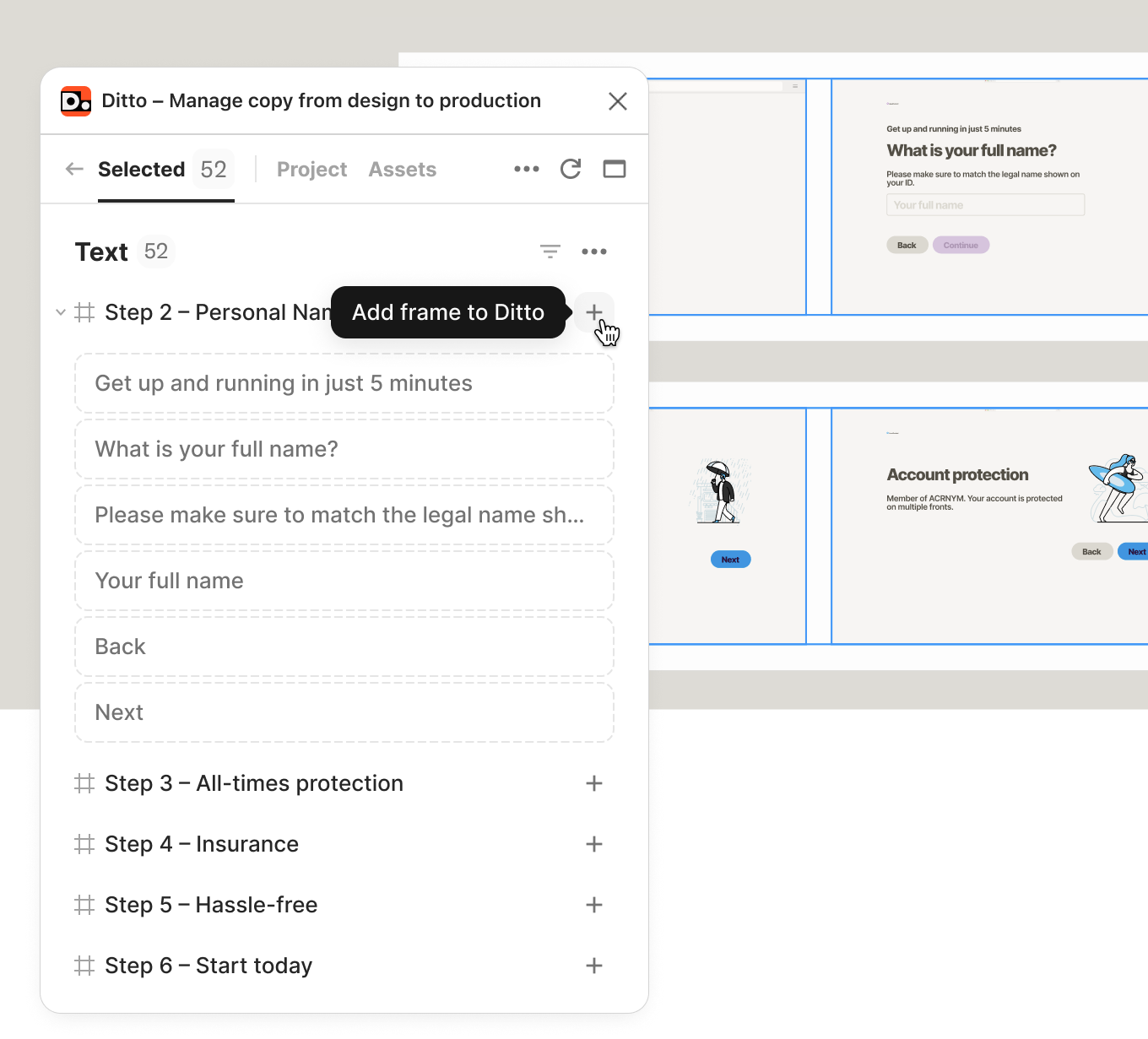
Teams often want to bring designs and flows into their Ditto project before jumping into specific edits. So now, you can add design frames directly to Ditto via the plugin.
Once you add a frame to Ditto, anyone in the project can view and work from it in the web app. Select the designs you want to collaborate on—whether a single frame, an entire section, or a full page—and bring them into Ditto.
- Frames that have been added will show up alongside the frames already in your project. We won’t automatically create or link text items when you add a frame: that will only happen when you interact with the text itself.
- By default, we’ll preserve the frame layout and flow from the Figma file: top to bottom, left to right, and with sections for grouping.
- Once a frame has been added to a project, it will have a unique URL in the web app. Copy this right from the plugin or from the web app to share it with someone else on your team.
Kicking off a copy review can be as simple as bringing in designs from a flow into Ditto. Add the frames that need a copy pass, then get to work with all the review features built into Ditto's web app. Reviewers can step through the flow frame-by-frame and take action: suggesting edits, marking status, or leaving comments.
(This one’s for those that shared feedback that they missed this from legacy Ditto!)