


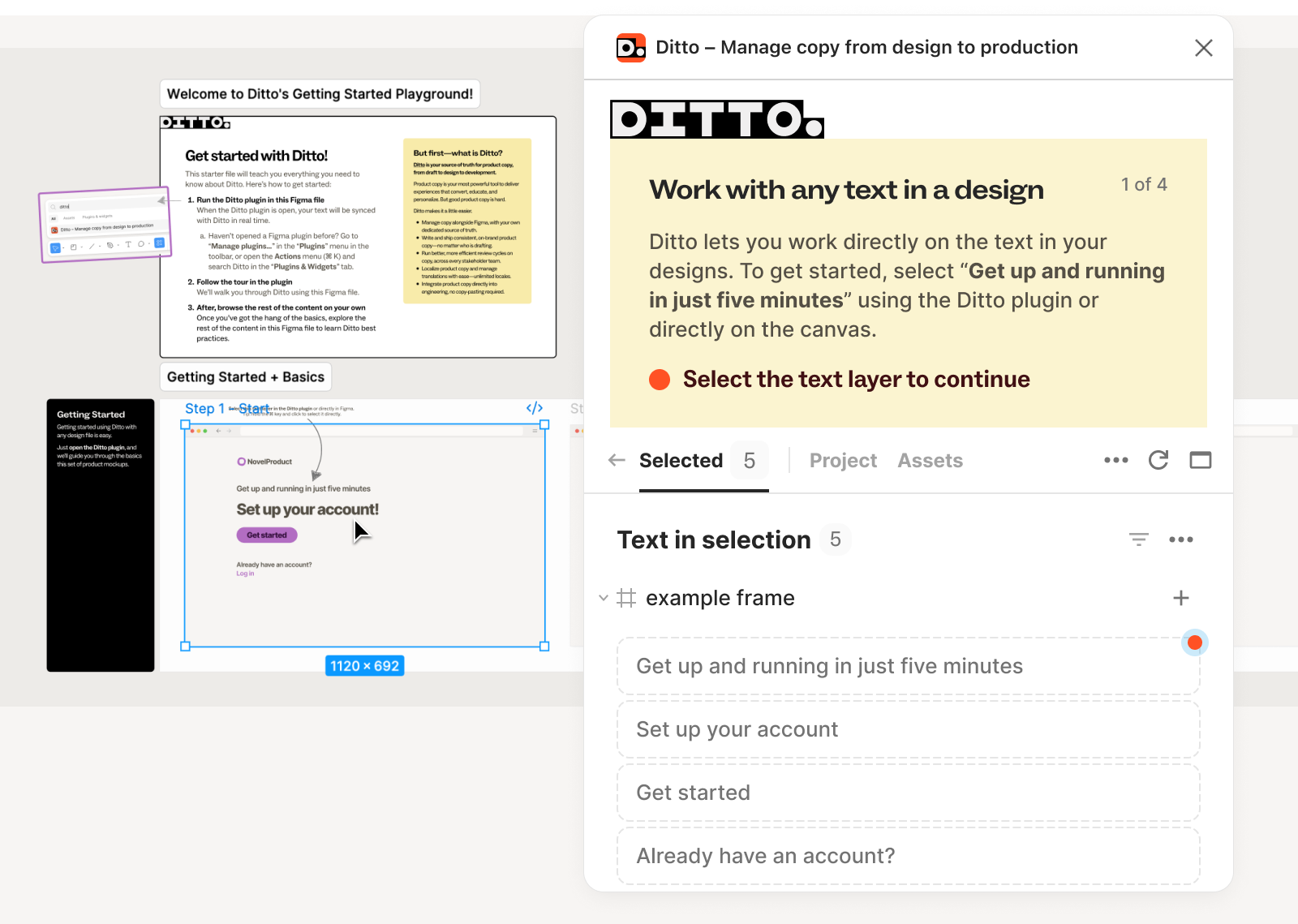
We have rebuilt your first project experience in Ditto with simplified workspace setup, a new Figma starter file, and an interactive tour to walk through fundamental features you need to know in Ditto.
Once you master the basics, explore the rest of the Getting Started Playground to learn Ditto features that will help you accomplish your goals: Scale consistency with AI style guides, run efficient reviews, or manage translations.
You can still try Ditto using your own file, but we recommend using the starter file to master the basics (in under 5 minutes!).
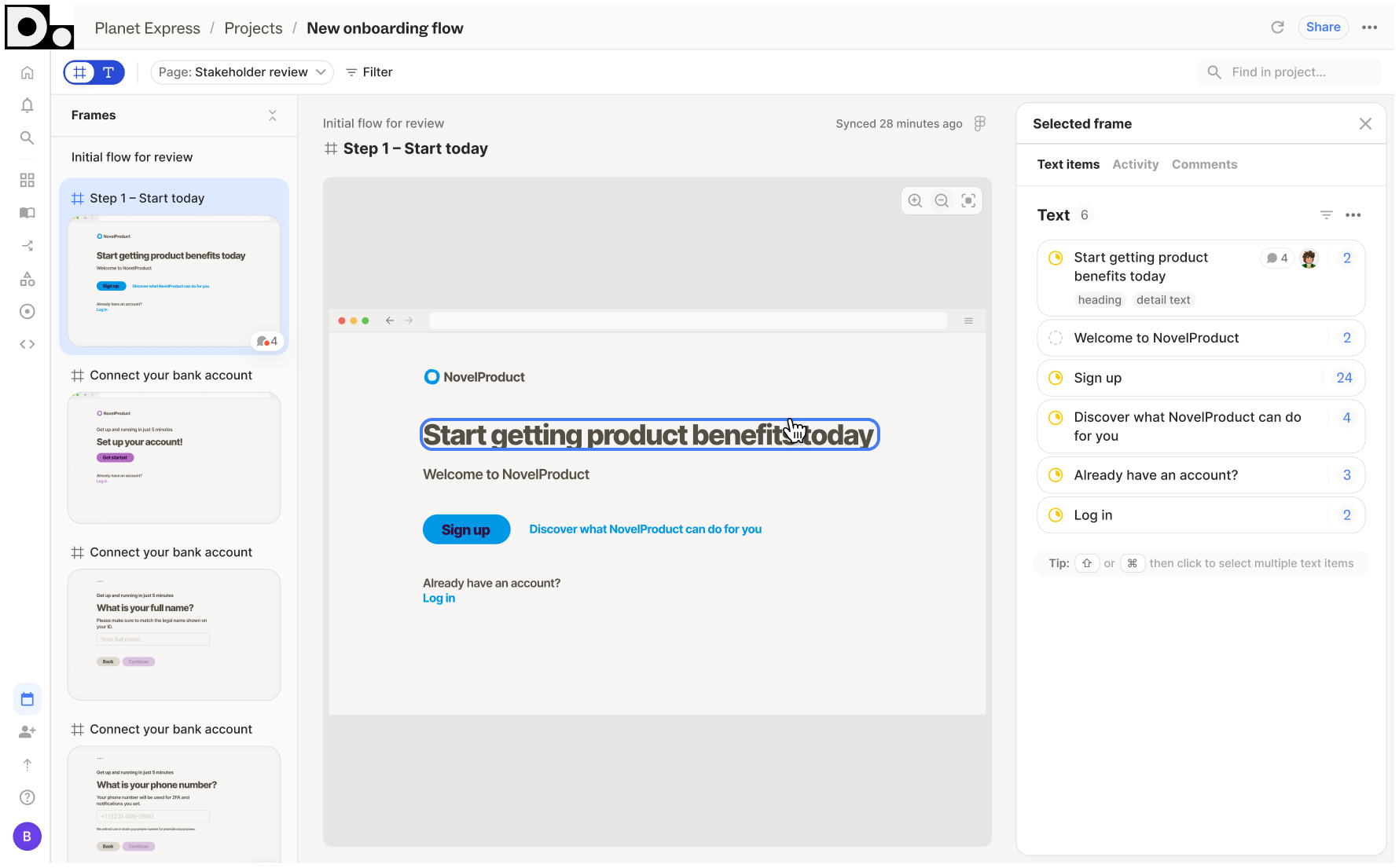
Ditto's web app now has all the design context you need. Whether you’re actively editing text or doing a review pass, you can run your full workflow from the new design view.
A single, unified view for working with designs: We’ve made the design view more powerful, and the default view for projects connected to a design.
Select and work on any text directly from the design view — even if it’s not yet linked to Ditto. This means teams can now use the design view as their primary working space.
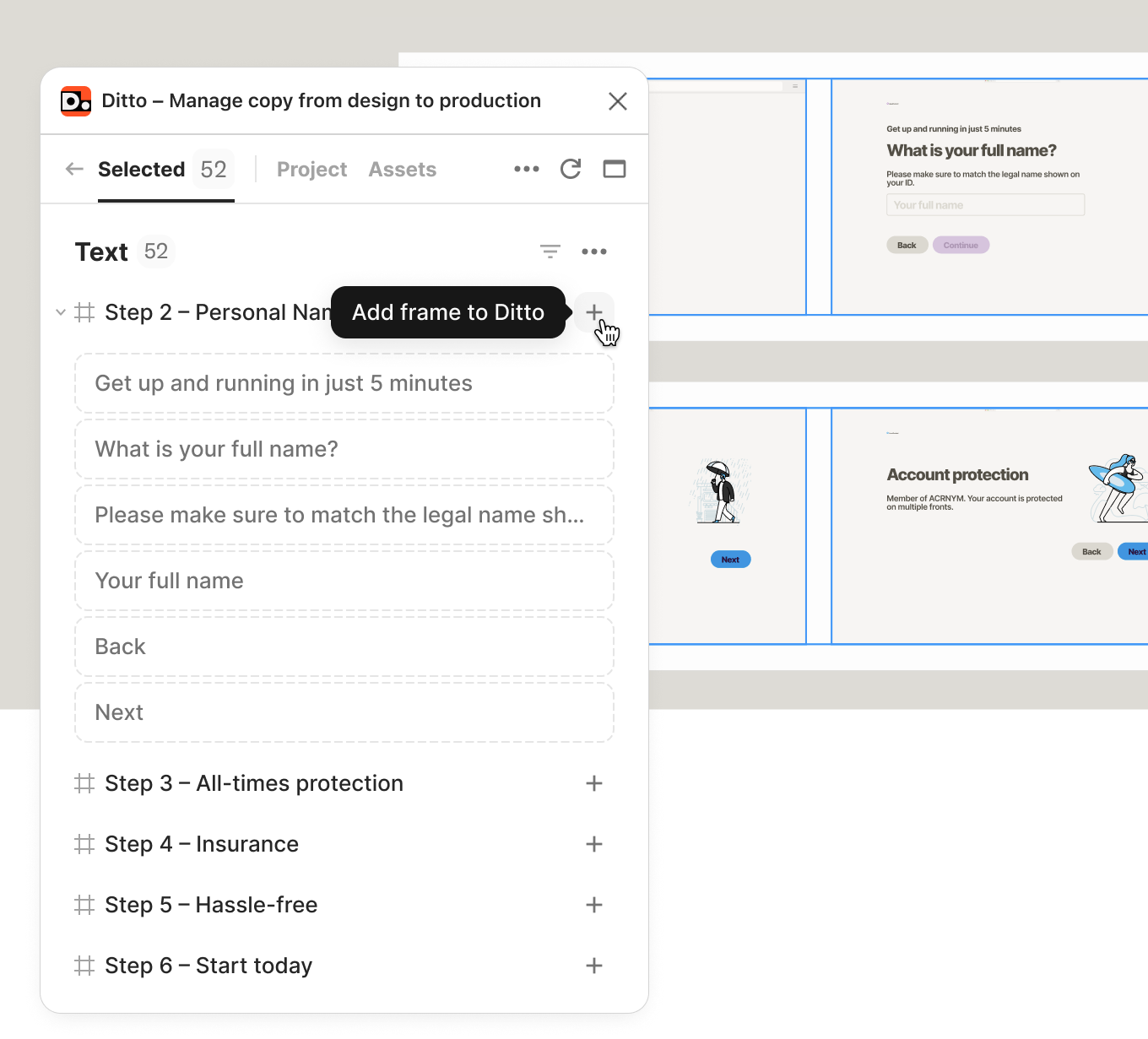
Teams often want to bring designs and flows into their Ditto project before jumping into specific edits. So now, you can add design frames directly to Ditto via the plugin.
Once you add a frame to Ditto, anyone in the project can view and work from it in the web app. Select the designs you want to collaborate on—whether a single frame, an entire section, or a full page—and bring them into Ditto.
Kicking off a copy review can be as simple as bringing in designs from a flow into Ditto. Add the frames that need a copy pass, then get to work with all the review features built into Ditto's web app. Reviewers can step through the flow frame-by-frame and take action: suggesting edits, marking status, or leaving comments.
(This one’s for those that shared feedback that they missed this from legacy Ditto!)