


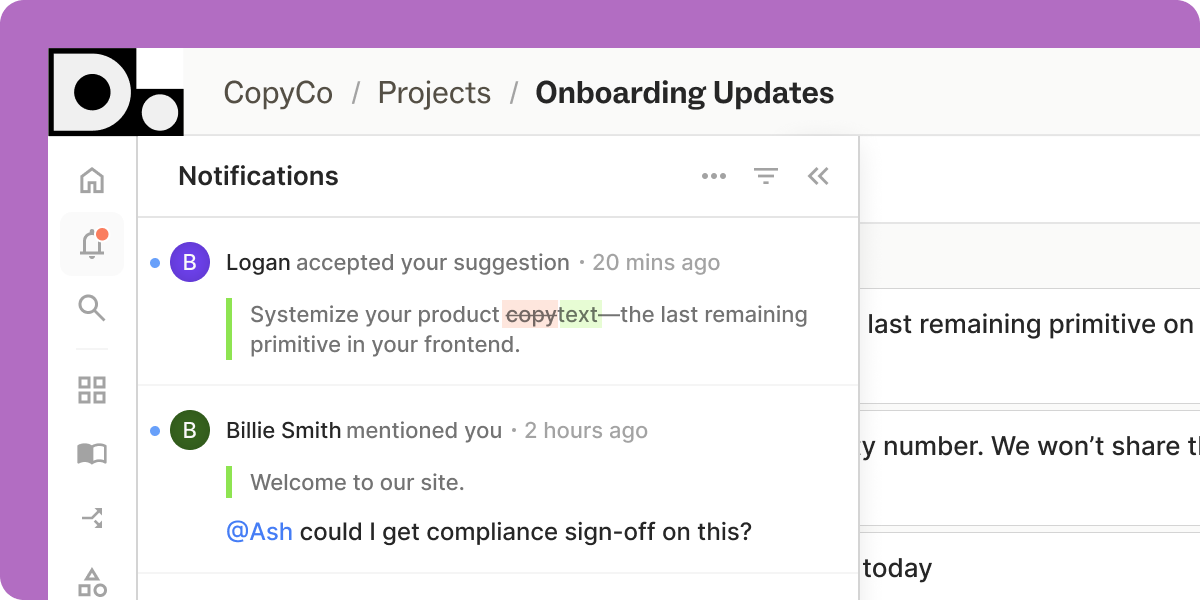
Notifications have been given their own dedicated page in Ditto. Filter and sort your notifications, contextualize new comments in full threads, and work through all open tasks from one view.
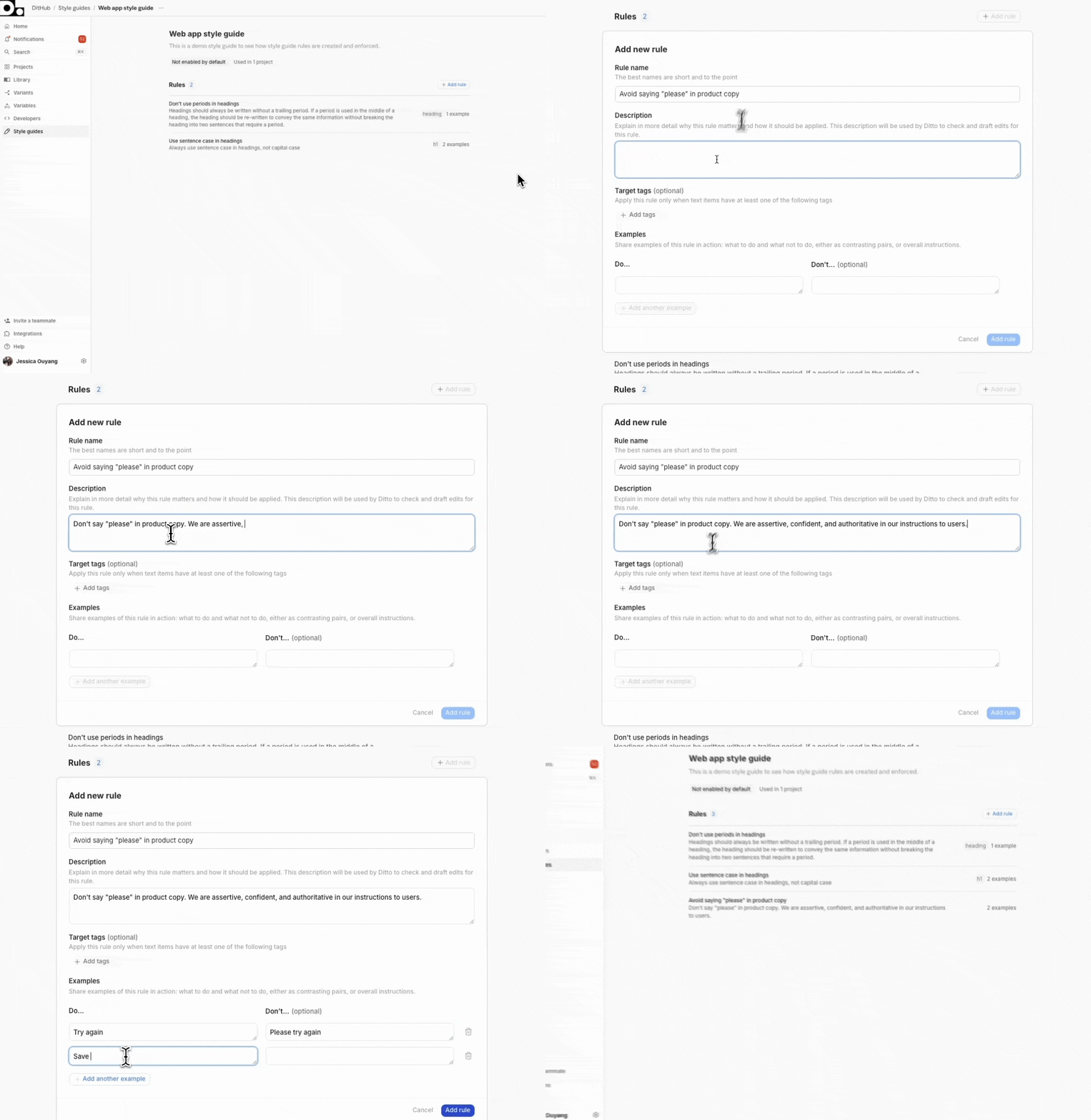
Make your content style guides usable, and turn AI into your greatest copy sidekick. Write, edit, and enforce copy guidelines, with Ditto’s AI.
AI-Enforced Style Guides: Make your content style guide actionable. Build your custom rules right in Ditto, then let AI enforce it for you.
Magic Edit: Enforce style guide rules and surface edits as your team writes, with Magic Edit. Ditto will automatically suggest edits, and surface the rules behind the suggested edit. Then, they can accept or reject based on context.
Before we jump into the good stuff, an exciting update: We’ve launched a brand new help center! Check out detailed breakdown of each Ditto feature in our new feature guides, or learn some recommended workflows in our new how-to guides.
Now, let's run through some of the exciting features your workspace has access to, for all beta projects.
See Developer IDs in Figma layer names: For workspaces with dev integrations, you can turn on the ability to see Dev IDs in the Figma layer name. To turn this on, just select the menu button in the top right corner of the plugin, hover over “Settings,” and select “Enable Developer IDs.”
You can now see the full folder path (main folder and sub-folders) when publishing text items to a library component, so you know exactly where you’re publishing.
”Fuzzy” component matches: Now, whether you’re publishing or linking components in the web app or the plugin, you’ll see more Ditto suggestions. There are now a few different “fuzzier” suggestions when Ditto recognizes similar copy to an existing component — no longer requiring an exact text match to suggest as an option.
Comment right from the “Comments” tab: Don’t worry about going back to the edit panel to leave a new comment — if you’re reading through the conversation on a text item or component, you can now add a comment straight from that same tab.
Multi-select text items to create a block: When organizing your text items in the web app, just CMD+Click (or CTRL+Click) to select multiple text items and add those to a new block.
De-select individual text items to import: When you select a Figma frame with multiple text items, but you don’t want all those text items in Ditto, now you can de-select the ones you don’t want to import.
Improved selection history/back button in the plugin: The plugin back button will now preserve your exact selection within the Figma file.
Improved diffs in activity log: We’ve made text diffs (showing you how a text item was rewritten) much more usable in the activity log, so you can easily read through changes.